How to add new publication pipeline
Introduction
Publishing research papers is a fundamental part of academic progress. It not only contributes to the growth of
knowledge but also enhances your reputation, credibility in your field and erudite among the academic community.
It's essential to stay updated with current trends in academic publishing and to follow ethical standards
throughout the process.
We have come up with an intra amrita web-based portal which helps you to showcase your publications,
significance of research within academic community, track the impact of work and visibility of work. Here each
paper publication is streamlined through a pipeline to track them more precisely. This helps the research
committee to keep track of each ongoing research work under their institution.
Here in this document, we will look how to add paper publication pipeline for your research work.
Getting Started
To access the Publication Pipeline Portal
-
Open an internet browser (Recommended to use Google Chrome)
-
Type https://myresearch.amrita.edu/ and click enter
-
Log in with your Amrita email id and password.
-
Click PUBLICATION PIPELINE

Add new publication pipeline
-
Click Add Publish Pipeline button at the right top of the page.

-
New publication pipeline page opens.

-
Go through each tab in the page and fill the relevant details.
-
Make sure to save the page by clicking the save button at right top of the page.
Paper Details:
Under Paper Details, you need to fill up the following details
-
Paper type
-
Author informations
-
Abstract
-
Keywords
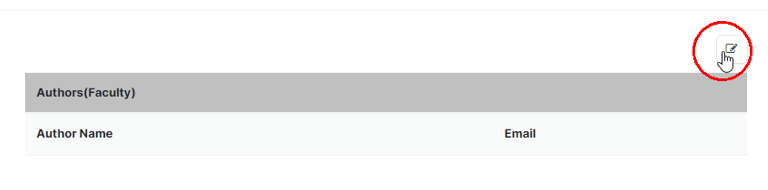
To Add Author Details, clicking the edit button.
-
Click Add row button, fill the details.
-
Click update button.

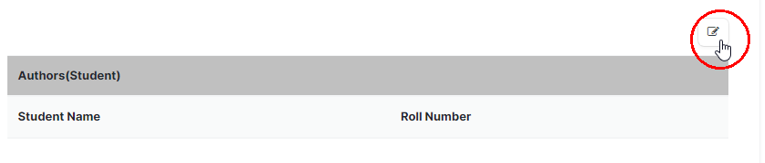
To add Student details, click the edit button.
-
Click Add row button, fill the details.
-
Click update button.

To add External author, click the edit button above the external author box.

-
Fill and save the required details related to External author.
-
Add Abstract details.
-
Add Keywords.
-
Click Save button at the right top of the page.

Manuscript:
-
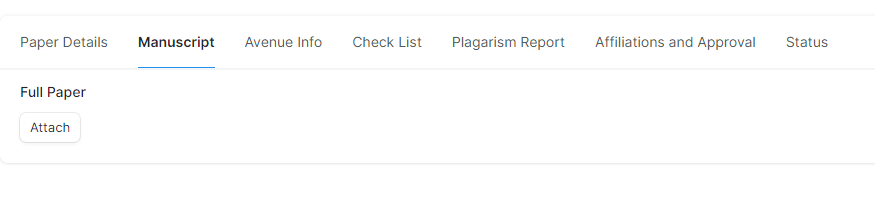
Upload the manuscript file here (recommend using pdf file).
-
Make sure not to upload the documents as private, which may restrict the approver from viewing the documents.
Avenue Info:
Category drop-down has two options.
-
Publication
-
Conference
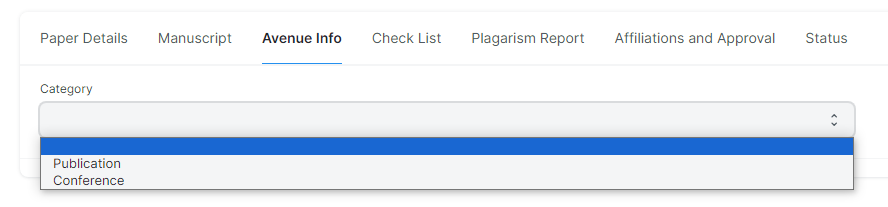
For Publication, you will be asked to provide the following details
- Journal Title
- Journal Publisher
- SJR Quartile
- SJR Impact factor
- Targeted Date of Submission
- Estimated cost associated with publication (INR)
- Avenue is indexed under
For Conference, you will be asked to provide the following details
- Title of Conference
- Targeted Date of Submission
- Estimated cost associated with publication (INR)
- Avenue is indexed under
A. For Avenue is indexed under – Scopus, you will be asked to provide the following details.
- Avenue reference URL
- Scopus Percentile
- Scopus Cite score
- Upload a proof confirming avenue is scopus indexed (Make sure not to upload the documents as private, which may restrict the approver from viewing the documents).
B. For Avenue is indexed under – PubMed, you will be asked to provide the following details.
- Avenue reference URL
- Upload a proof confirming avenue is pub med indexed (Make sure not to upload the documents as private, which may restrict the approver from viewing the documents).
C. For Avenue is indexed under – SCI, you will be asked to provide the following details.
- Avenue reference URL
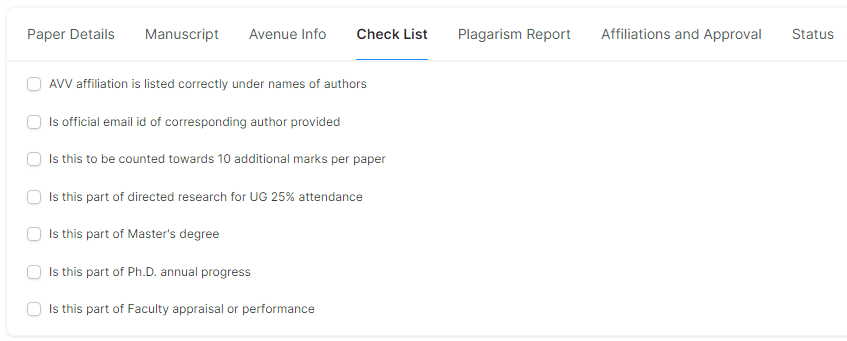
Check List:
-
Check the relevant details in this page.
Plagiarism Report:
-
Upload the plagiarism report here (recommend using pdf file).
-
Make sure not to upload the documents as private, which may restrict the approver from viewing the documents.

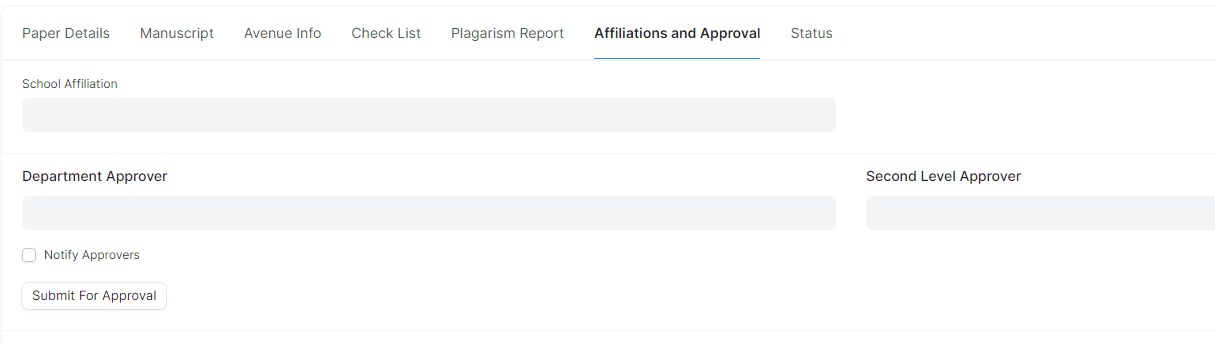
Affiliations and Approval:
-
Fill School affiliation (The school under which you write paper / do research)
-
Fill School affiliation (The school under which you write paper / do research)
-
Add department approver (The current reporting department head). Add second level approver (The school currently you report / belongs to).
-
Enable notify approvers to send notification. This will send an email notification to the approvers regarding seeking approval.
-
Click Submit for Approval.
-
Paper needs to get all level of approval to proceed further.
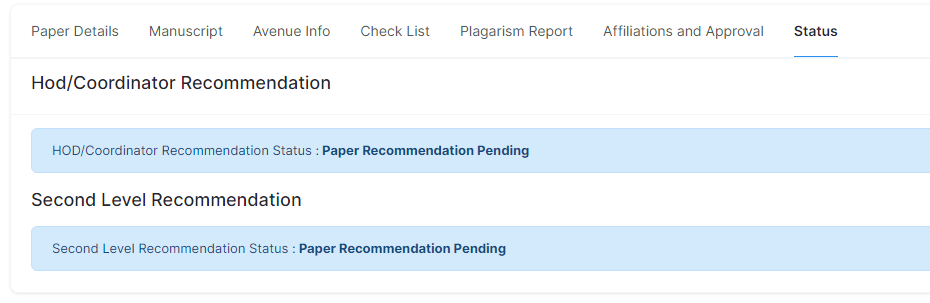
Status:
-
Here the status of the publication submitted for approval will be displayed.