User Guide for Campus Admin
Amrita Publication Tracking Portal
About Portal
The portal is internal to Amrita. Users who don’t have an Amrita email address or direct login to PTP will not be able to see or edit any information, in the portal.
The PTP will be accessible, only through AUMS(eventually). All the pages will be checked for login status, if not logged in, prompt to login, without showing the details of the webpage.
The web crawlers will be restricted from crawling the site. Appropriate robot configuration will be maintained.
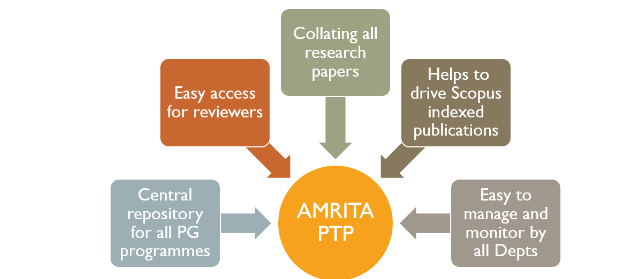
Benefits
Create new batch
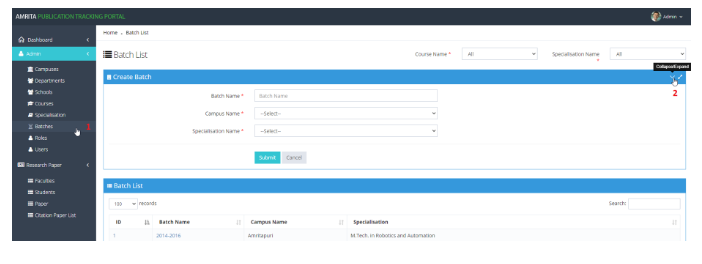
Click on “Admin” >> “Batches”.
Expand “Create Batch”.
Fill in all details and click on Submit button.
Search batch and view details
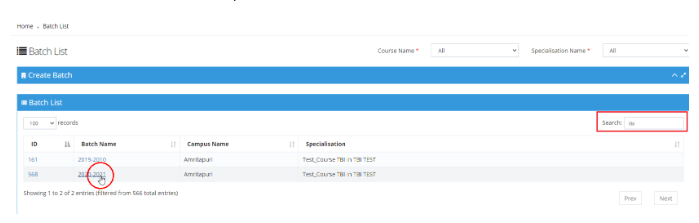
Search the batch using the Search option at the right top
Click on the batch name to open the batch details
Add bulk students to batch
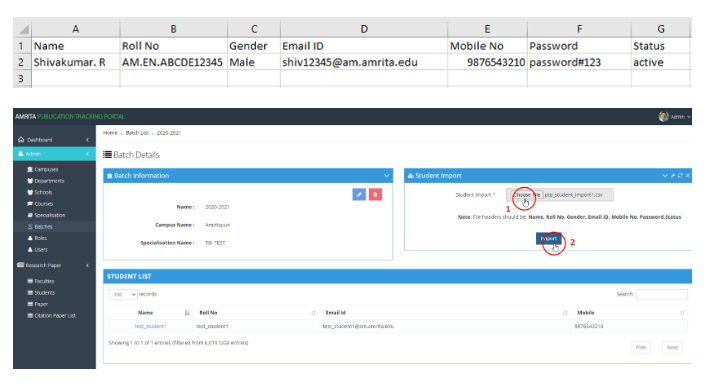
To add bulk students to batch, click “Choose File”. Browse and select the csv file with list of students from local machine.
Click Import button.
Make sure the csv file has Name, Roll No, Gender, Email ID, Mobile No, Password, Status each as header exactly as like the sample shown below.