User Guide for Faculty
Amrita Publication Tracking Portal
About Portal
The portal is internal to Amrita. Users, who don’t have an Amrita email address or direct login to PTP will not be able to see or edit any information, in the portal.
The PTP will be accessible only through AUMS(eventually). All the pages will be checked for login status, if not logged in, prompt to login, without showing the details of the webpage.
The web crawlers will be restricted from crawling the site. Appropriate robot configuration will be maintained.
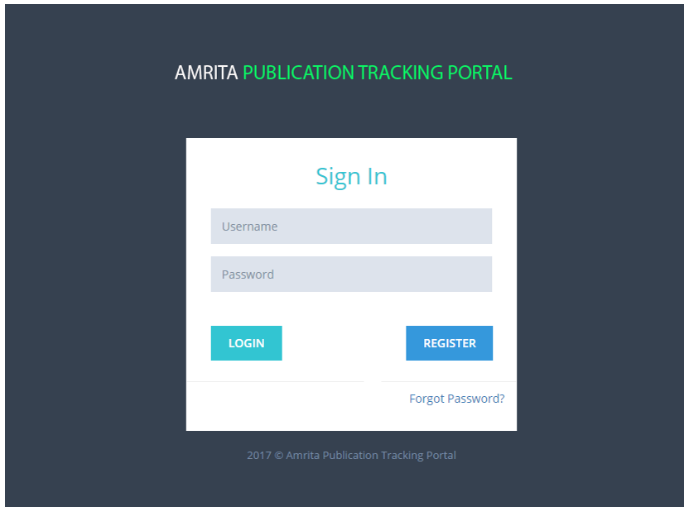
Login Screen
The Amrita Publications Tracking Tool can be accessed using the URL attached below.
https://ptp.amrita.edu
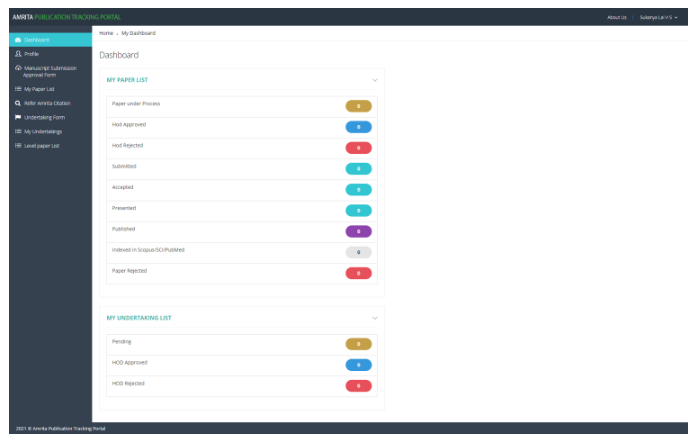
Faculty user Dashboard
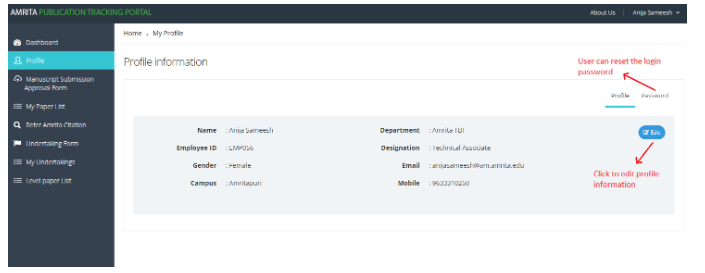
User profile
Research paper upload details
Mandatory details needed:
Paper title
Keywords
Scopus/SCI/PubMed indexed : Yes/No
ABDC category
Research paper with correct affiliation
Plagiarism report
Avenues of publishing -URL and Date of submission
Author details
Optional
DOI number
Date of acceptance
Registration cost
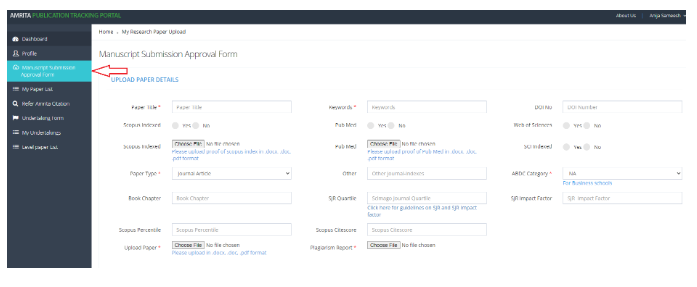
Manuscript submission approval form
Click on “Manuscript Submission Approval Form”
Fill all the relevant details and upload the required files
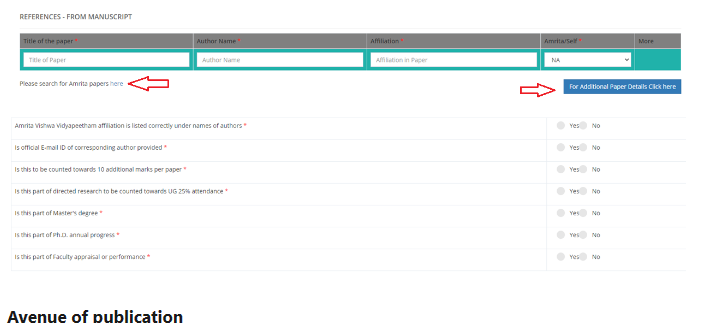
Adding References
Reference details need to be added.
To search any of the Amrita papers, click on “here” link just below the table.
Applicants can add more details by clicking the button “For Additional paper details Click here”
Avenue of publication
For Conference Category

For Publication Category

Author selection
Users, who submit the paper will be considered as one of the authors, and it is mandatory to select their name.
The User can add both Internal and external authors. Also, the faculty or student authors.
While selecting faculty author, a drop-down will show the suggestions with the mail id of the faculty author, the student’s roll number will be shown along with their name.
If an external author is mentioned in the paper, the user can add the Author’s details.
Mark whether the faculty/student is a corresponding author.
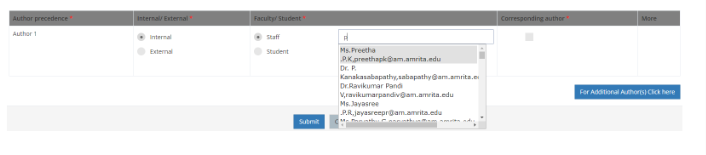
Author selection – staff (internal)
Select Internal / External.
Select Faculty / Student.
Upon typing the Author name, the matching faculty name will be listed in the drop-down to select.
To add more authors, click on “For Additional Authors Click here”.
Author selection - student
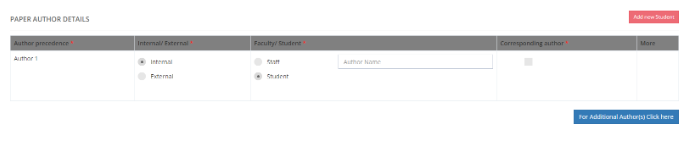
Upon typing the Author name, the matching student name will be listed in the drop-down to select.
If you want to add a new student who doesn’t exists in the drop-down, click “Add new Student” button
To add more authors, click on the button “For Additional Authors Click here”
Add new student
Fill all details and click Submit to add a new student
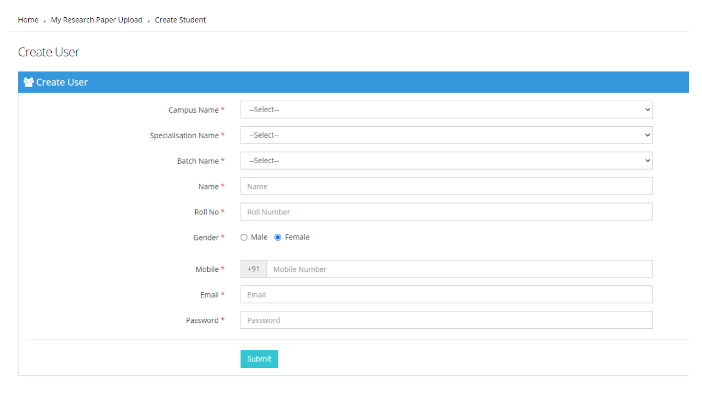
Author selection - external
For adding External authors, type their name, organization, country, and email id.

Research Paper Upload - Edit Details
To edit the paper
Go to "my paper list"
Filter the paper list as Written using the paper status drop-down in the top right corner.
Select the paper.
Select the option given in the bottom “Click here to view the details of this paper..”
It will show the details of the paper. Then click the appropriate Edit buttons wherever you want to edit.
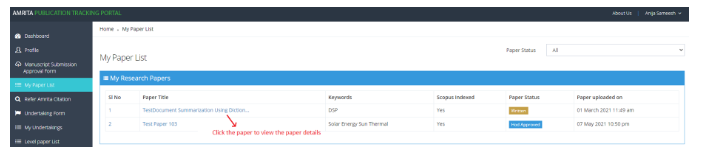
To edit the paper details
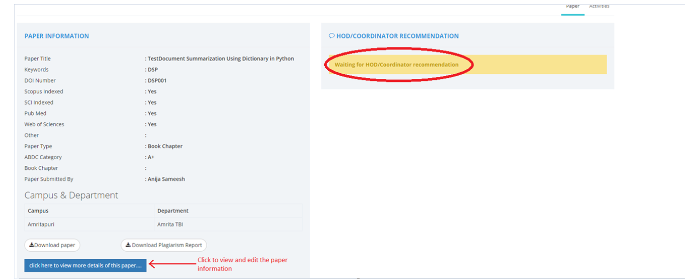
Paper revision
HOD Recommendation Rejected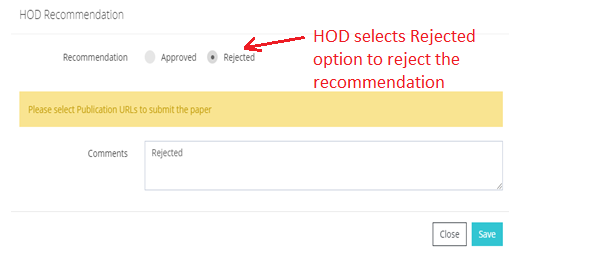
Users can add new paper revisions after making necessary changes and resubmit for recommendation.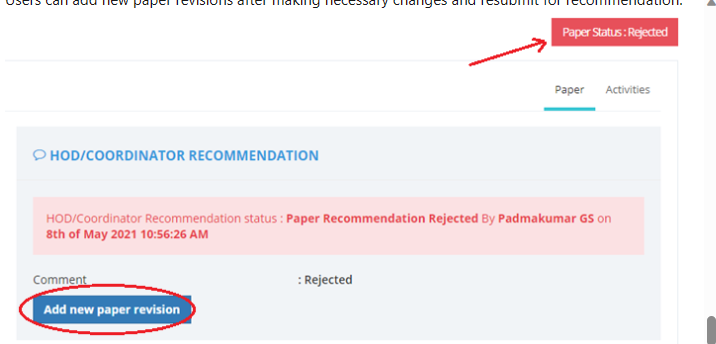
Second level Recommendation
Once the HOD approves, the user needs to complete a second-level recommendation.
The second-level recommendation is usually done by the Dean / School Admin.
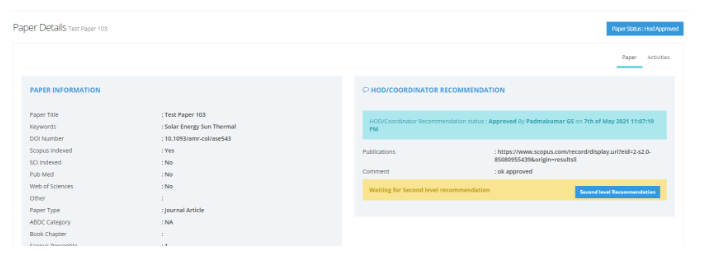
Ready for Submission
Once the Second level is approved, users need to submit the paper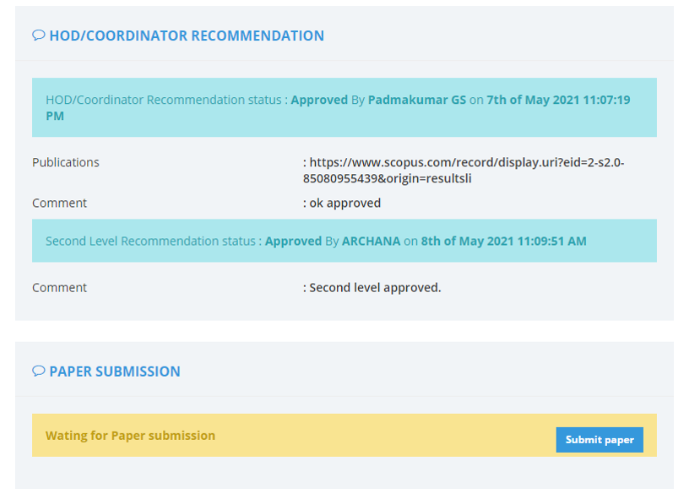
Paper Acceptance
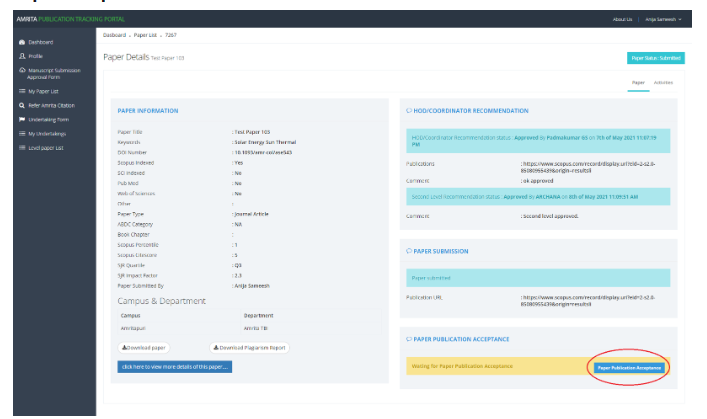
Users need to select one of the options; whether the paper publication got accepted or rejected, to update the status.

Once the paper publication is accepted, user needs to upload the
Paper acceptance letter
Registration fee payment receipt
Claim form
Submit them one by one. Upload the files in PDF format.
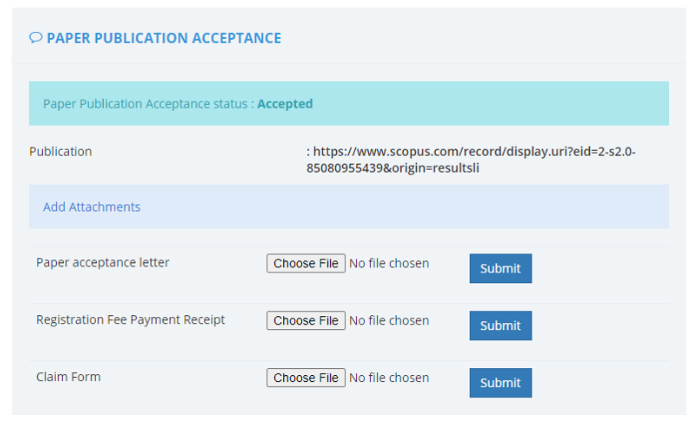
Paper publication
Once the paper gets published in a Journal/Conference, the user should mark it as presented.
Enter the publication details and upload the final paper. The department coordinator can also update the status if, the user is not available.
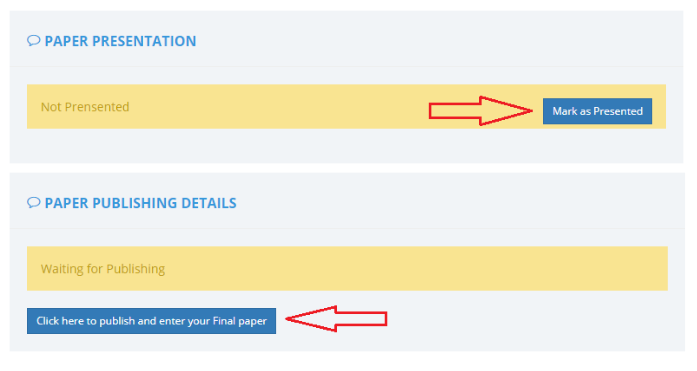
Published paper details
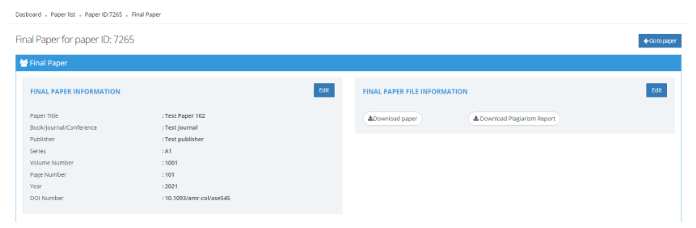
Mark as Indexed
Mark it as Indexed in Scopus.
Add the “publication URL” and “date of indexed”.
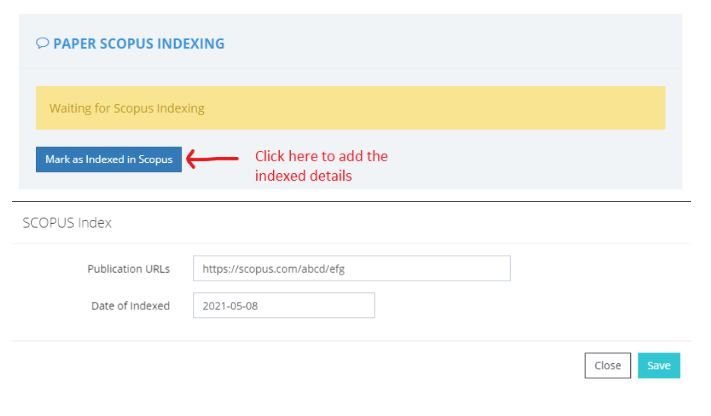
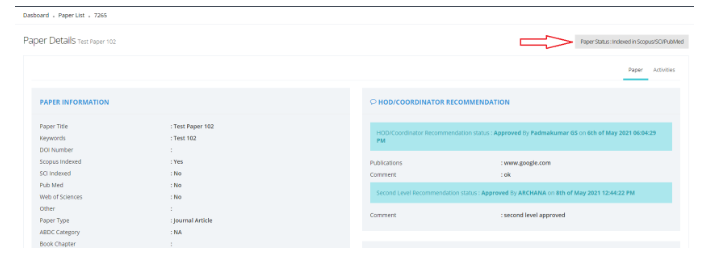
Indexed in Scopus/SCI/PubMed
Status of Paper is marked as “Indexed in Scopus/SCI/PubMed”.
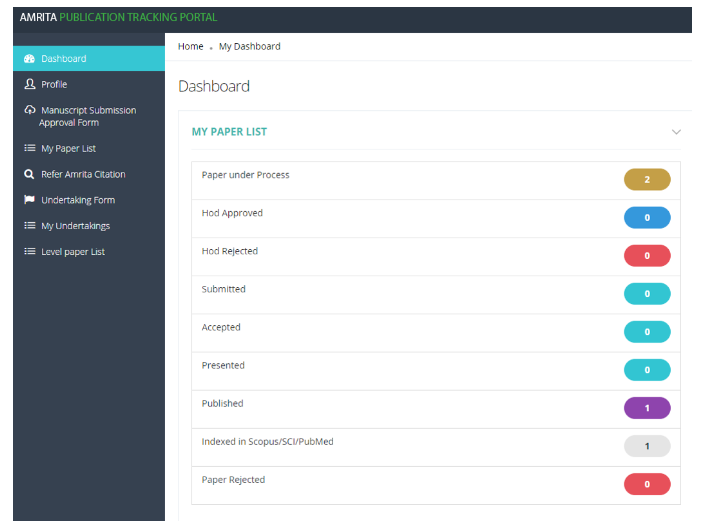
Faculty dashboard