Candidate - V02
Contents
Introduction:
Amrita Job portal is a new career guidance portal which helps job seekers to find their career at Amrita. The Job seekers can avail job by registering themselves in to this portal, search and apply for different jobs which matches their profile. This document illustrates a candidate role in Amrita Career Portal.
Getting Started:
Open an internet browser (Recommended to use Google Chrome)
Type https://careers.amrita.edu/admin-login and click enter
Registration / Create a new account
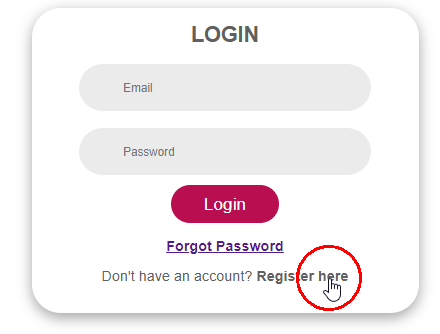
Click Register here in the login screen
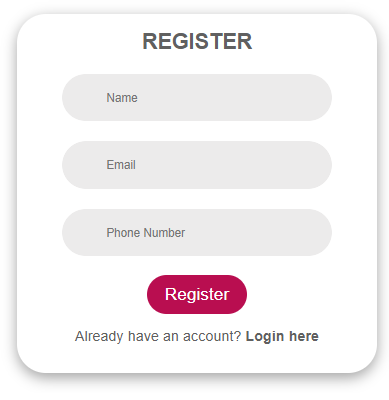
Register page opens.
Fill Your name, Email ID, and Phone number.
Click Register button.
You will receive a verification email to the registered email id.
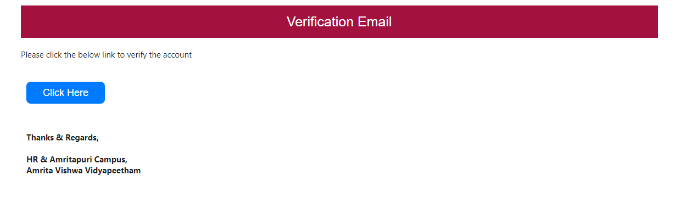
Click on the "Click Here" button to verify your account.
A new page to set password will open. Set new password and click Submit button.
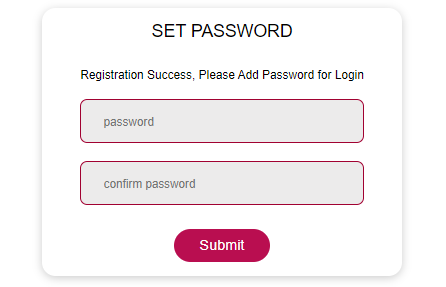
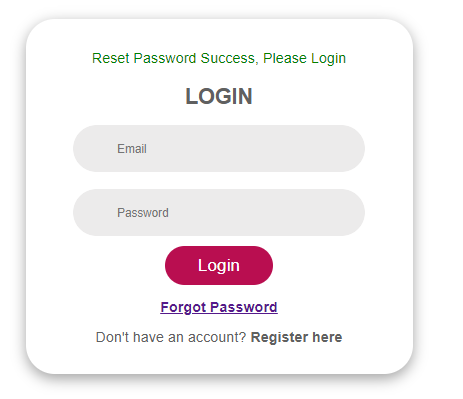
You will be redirected to the login page after successful registration. You can login with the registered Email ID and Password.
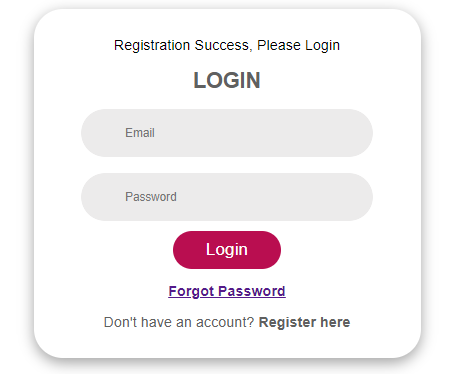
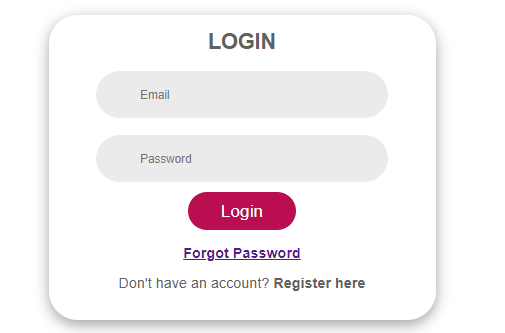
Login
Enter the registered Email ID and Password
Click Login button
Profile
When the candidate login for the first time, or haven't added basic information, application will prompt to fill the basic info details. This is an one time setup. All filled details can be later viewed from the profile page.
Candidate will have to fill all the details under each section, save them and click Next button to switch to next section.
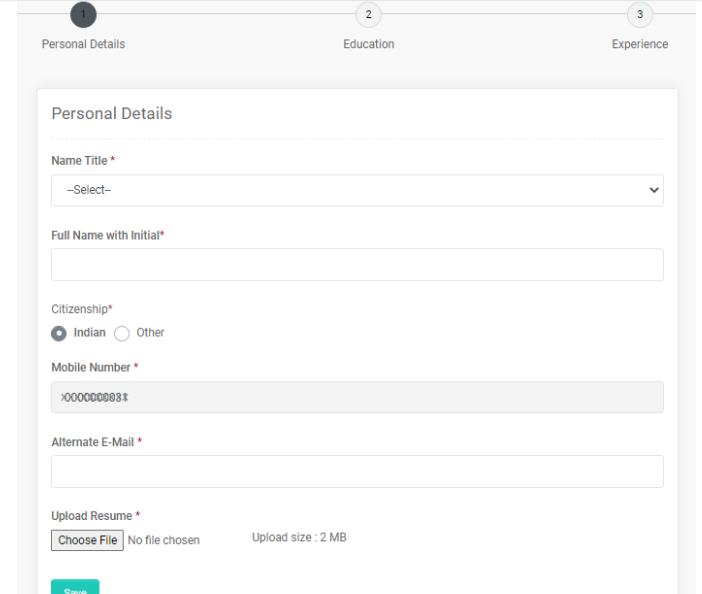
Personal Details
In the personal details section the following details has to be filled
  - Name Title
  - Full Name with Initial
  - Citizenship
  - Mobile Number
  - Alternate Email
  - Upload Latest Resume
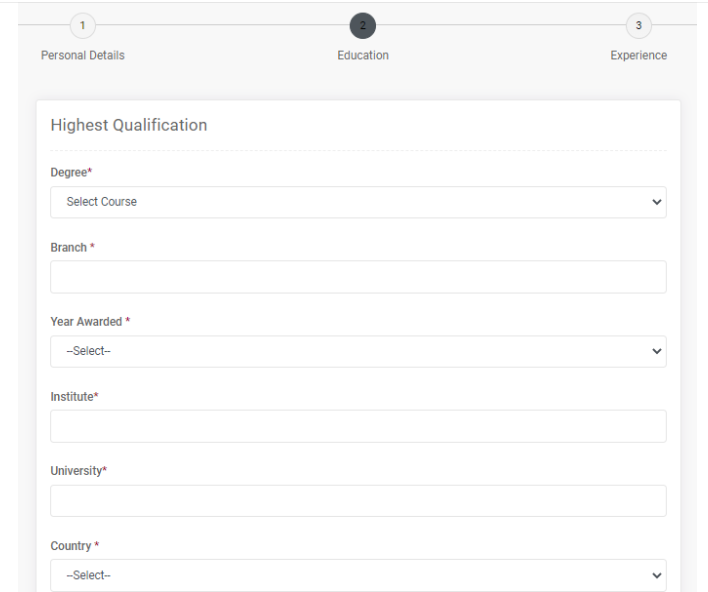
Education Details
In the Education details section the highest education details the candidate is holding has to be filled
 - Degree
 - Branch
 - Year Awarded
 - Institute
 - University
 - Country
 - State Name / Province
 - Percentage
Experience Details
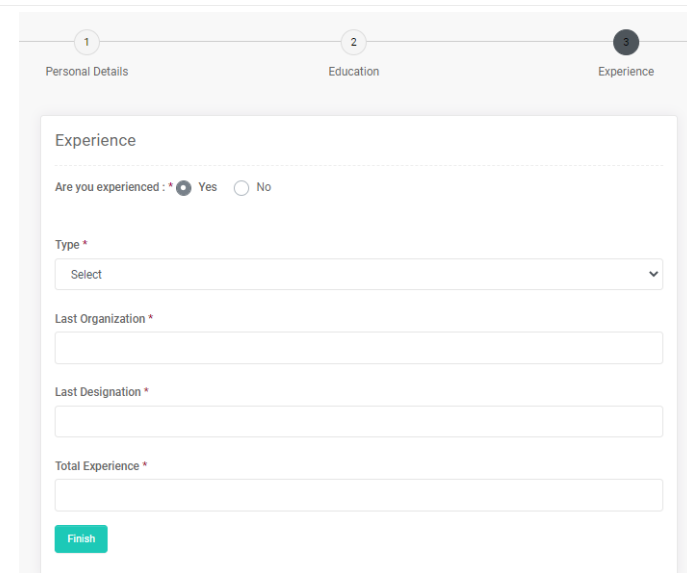
In the experience details section, candidate need to add the experience details if available.
If the candidate has any previous experience the following details need to be filled
 - Type
 - Last Organization
 - Last Designation
 - Total Experience
Once the candidate finish filling the Basic info, application will be landing to the Job Search page.
Edit Profile
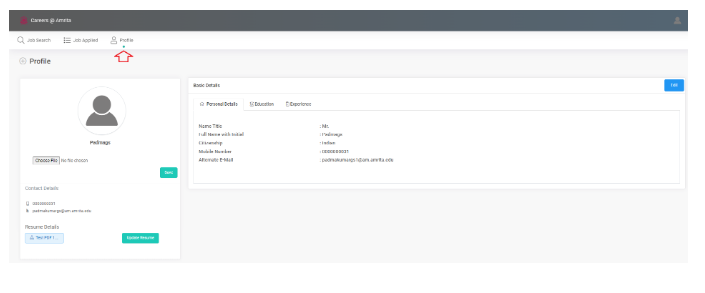
Candidate can access and edit the profile details from the Profile page.
From profile page candidate can
upload profile image
download or upload latest resume
edit basic details
Job Search
Click Job Search in the top menu
Candidate can search a job using search box or filter by campus.
Click on a job tile to get the detailed view of the job at the right side of the page.
Click Apply Now button in the detailed view to apply for the particular job.
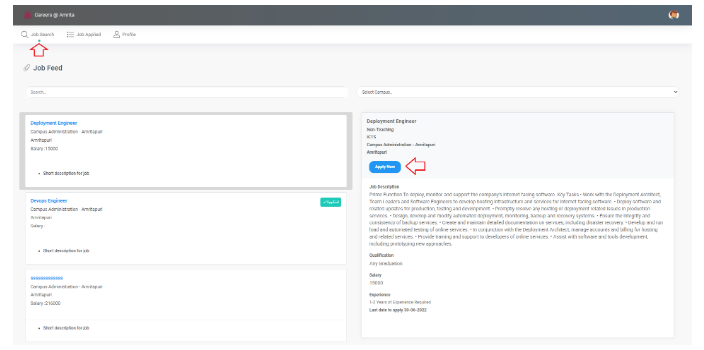
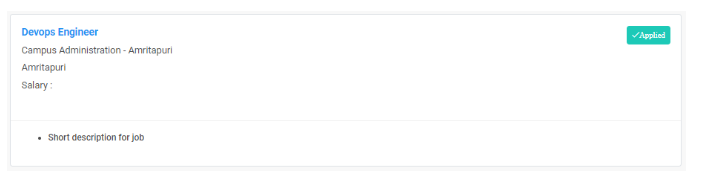
Once the candidate apply for a job, the job tile will have a badge displayed as Applied.
Job Applied
Click Job Applied in the top menu
The page displays the list of jobs applied if any.
Here for each job applied, details of the job and the interview details will be displayed.
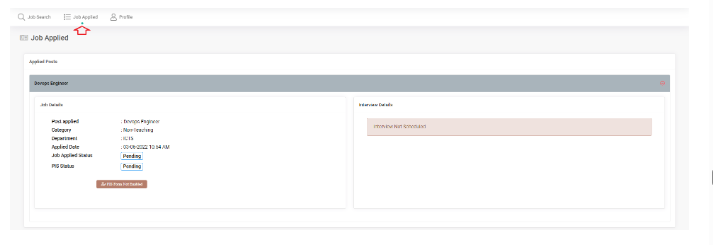
Job details section will have
Post applied
Category
Department
Applied Date
Job Applied Status - Pending / Accepted
PIS Status - Pending / Completed
Button to open PIS form (This button has to be enabled by admin for the candidate to fill the PIS form once the application is accepted)
PIS Form
Once the application is short listed, admin enables the PIS form for the candidate to fill details. Candidate will receive an email notification asking to share the required details.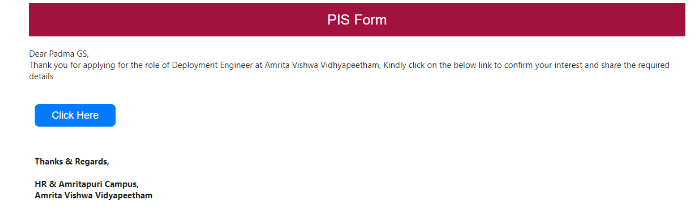
When candidate login to the portal after the PIS form is enabled, a notification message is displayed in the Job Search page.
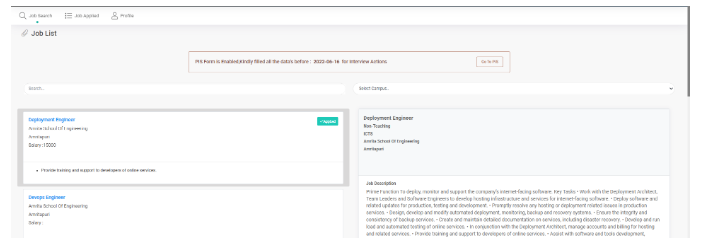
Candidate can go the PIS form page by clicking on the Go To PIS button in the notification or from the Job details in the Job Applied page.
In the Job details section you will notice the Job Applied Status has changed to Accepted and PIS Status has changed to Enabled. Candidate can click on the Update PIS Form button to open the PIS form.
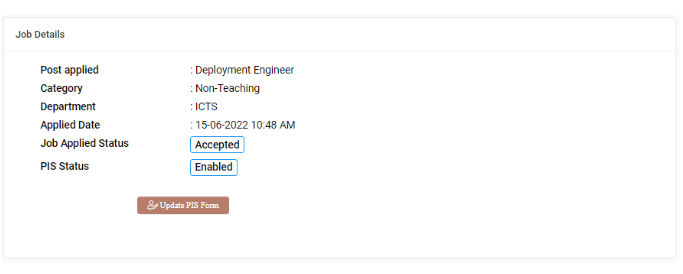
In PIS form candidate need to fill details of the following sections
1. Basic Information
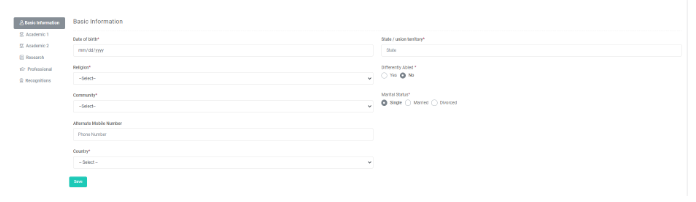
2. Academic1
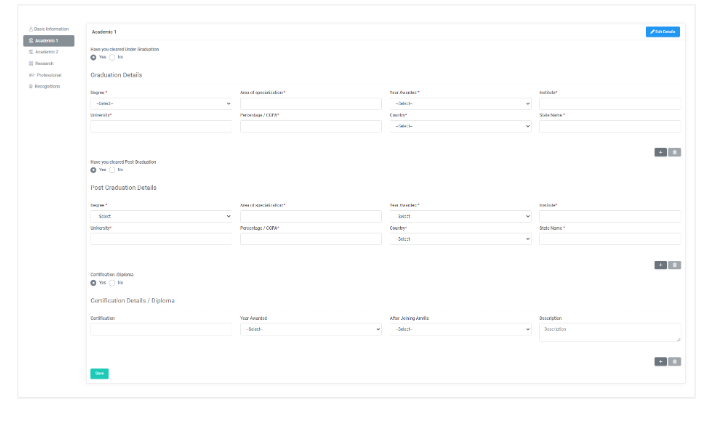
3. Academic2
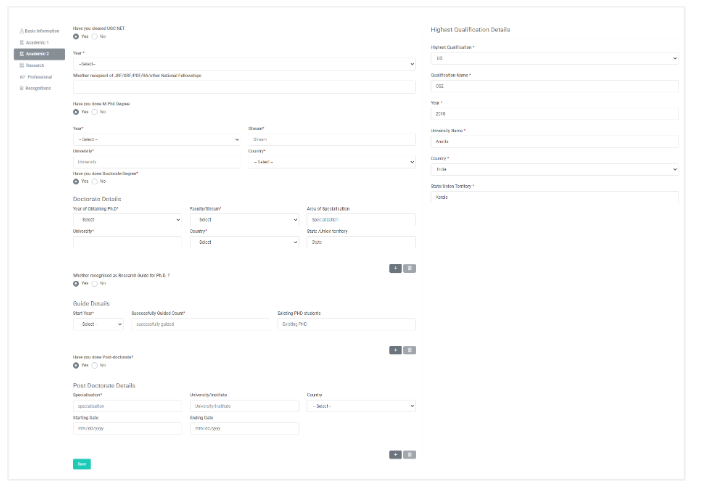
4. Research
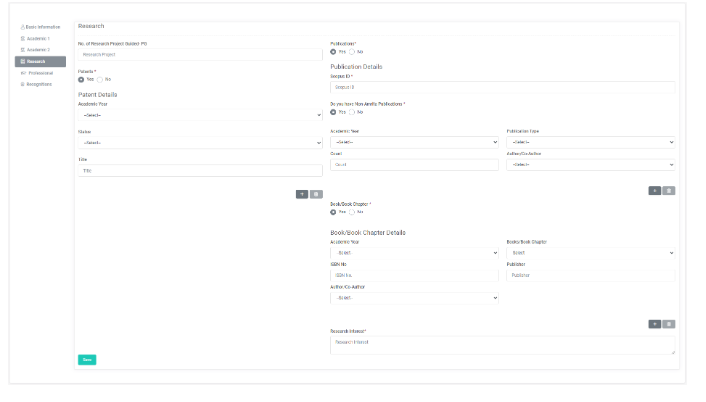
5. Professional
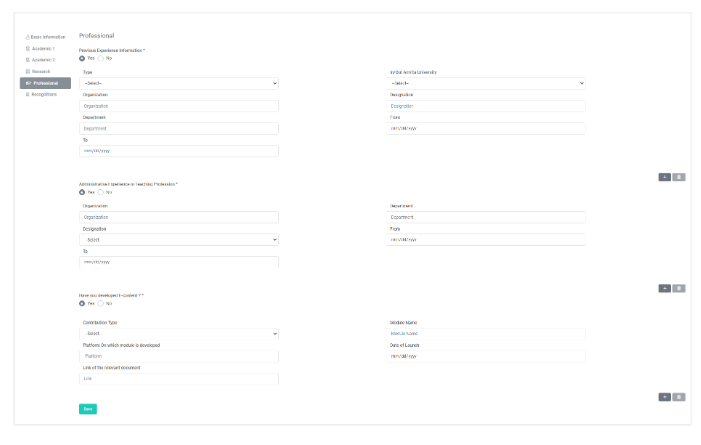
6. Recognitions
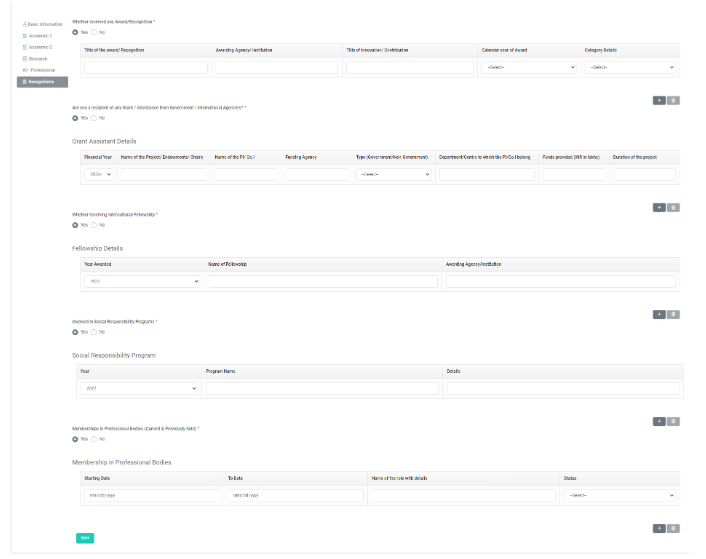
Once candidate completely fill all the pages in PIS form, the PIS status in the Applied Post page changes to Completed.
Interview Details
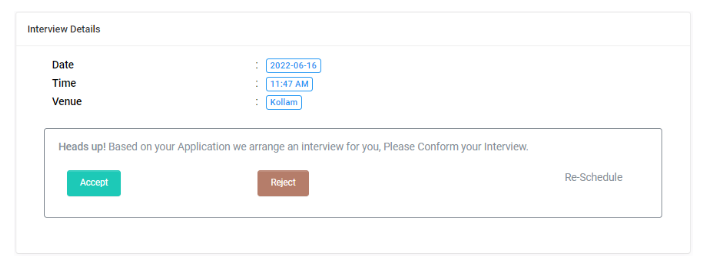
Upon the candidate completes filling the PIS form, admin will schedule the interview. Candidate will receive an email notification regarding the interview schedule.
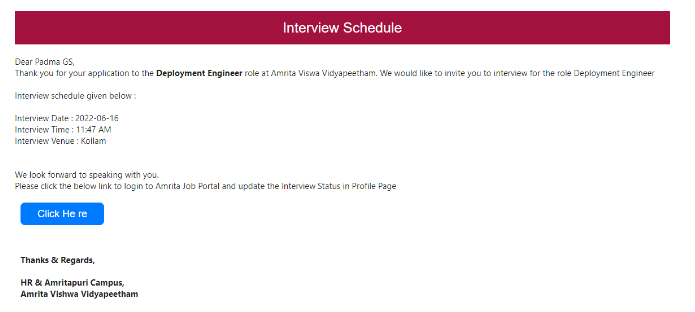
Interview details section of the applied job will show the Date, Time, Venue of Interview.
There will be three options displayed in the interview details section for the candidate to choose
Accept
Reject
Reschedule
Accept the Interview Invitation
Click Accept button to accept the interview invitation.
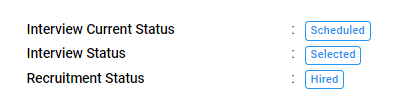
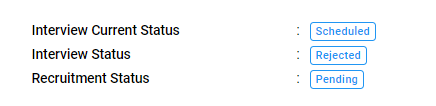
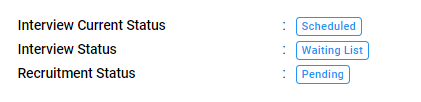
Interview Status and Recruitment status will be displayed as Pending until the admin updates the status depending on the interview result.
After the interview, candidate may get one of the following status
Selected
Candidate is Selected for the applied post.
Rejected
Candidate is Rejected for the applied post.
Placed on Waiting list
Here the interview result is kept on hold and the candidate is placed to waiting list for a time period. This may get changed to either Selected or Rejected once the interview results are released.
Reject the Interview Invitation
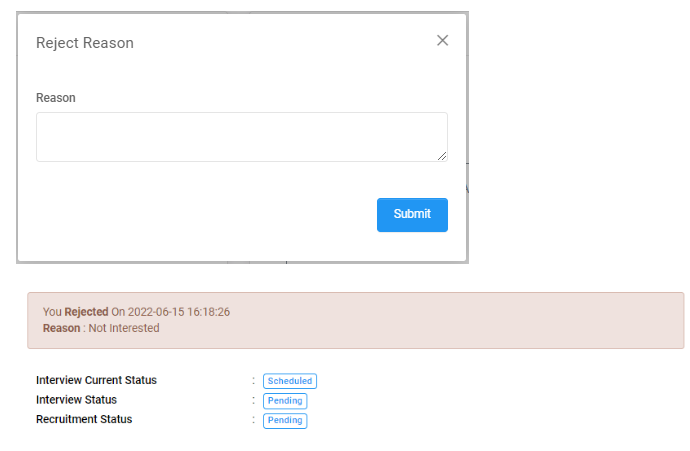
Candidate can reject the interview invitation by clicking the Reject button. Candidate needs to mention the reason for rejecting the invitation.
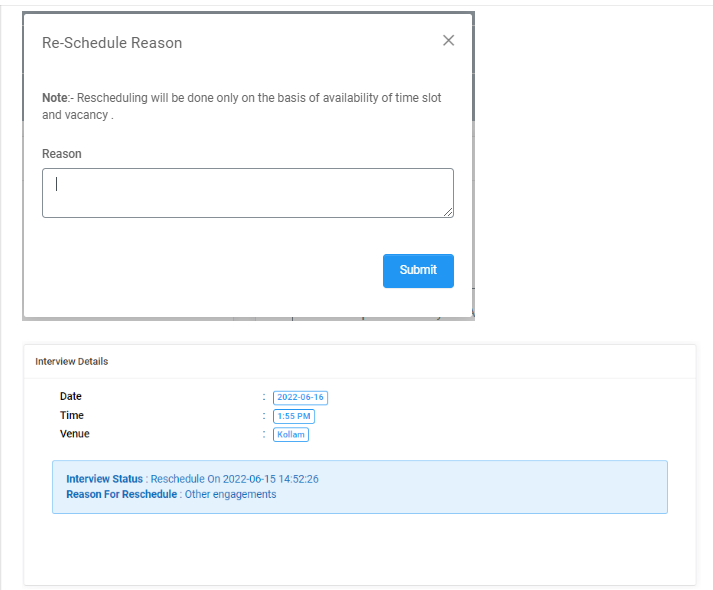
Request to Re-Schedule the interview
Candidate can request to re-schedule the interview. Re-scheduling will be done based on the availability of time slot and vacancy.
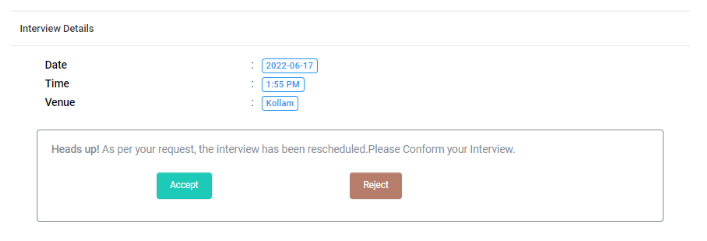
For the rescheduled interview invitation, candidate will only have the option to Accept or Reject.
Forgot Password
Candidate can reset the password if they forgot or compromised.
Click on Forgot Password button in the login screen.
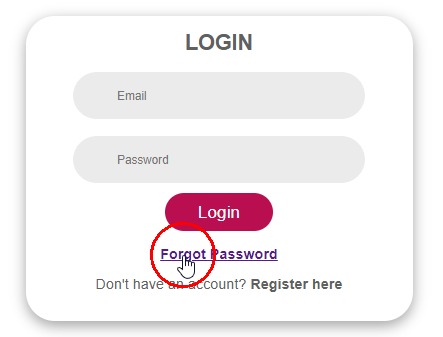
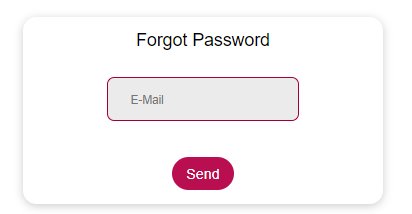
Candidate need to enter the registered email id and click Send button to receive an email with reset link.
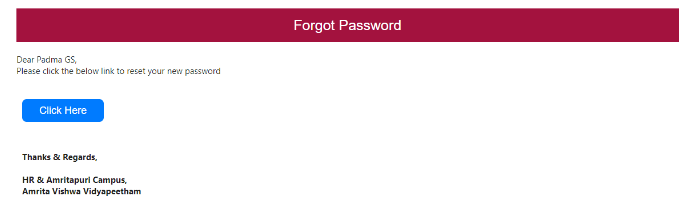
Candidate receives an email with link to reset password.
Click on the Click Here link in the email content.
A new page opens where candidate need to provide password and confirm password.
Click Submit.
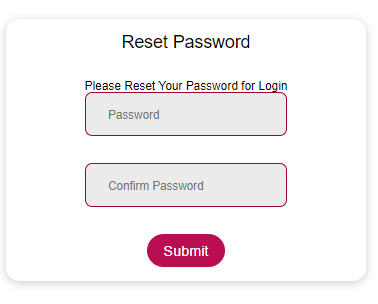
Password will get reset successfully and you will be redirected to login page.