Admin v03
Contents
Introduction:
Amrita Job portal is a indigenous career guidance portal eclectically designed to help job seekers to find their career at Amrita. The Job seekers can avail job by registering themselves in to this portal, search and apply for different jobs which matches their profile. This document illustrates admin role in Amrita Career Portal. Here we cover the following topics in detail
Job Administration
Create New Job
Edit / Delete a Job
Search a job
Dashboard
View descriptive details of a Job
View candidate list with the process status of a particular job
View profile of a candidate who has applied for a job
Enable PIS Form for a candidate to Fill details
Schedule Interview
Publish Interview result
Getting Started:
Open an internet browser (Recommended to use Google Chrome)
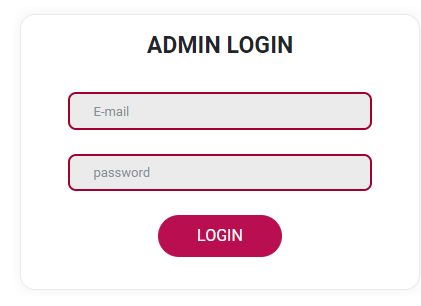
Type https://careers.amrita.edu/admin-login and click enter
Login with your amrita email id and password.
Click Login.
Job Administration
Create New Job:
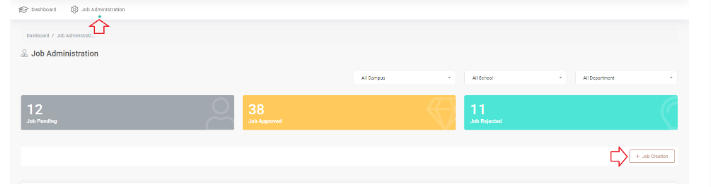
Click Job Administration in the top menu.
Click on the Job Creation button at the right side of the page.
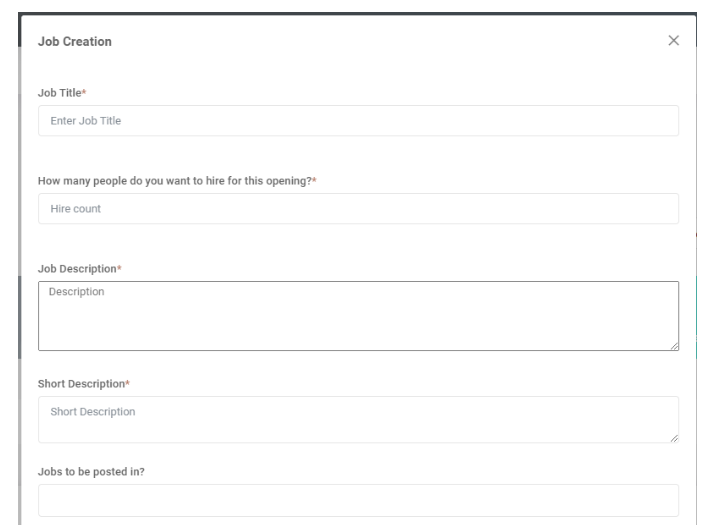
Job Creation window will be opened.
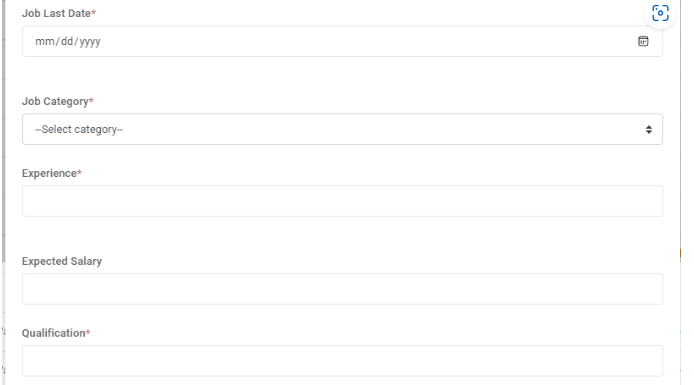
Fill the following details
Enter a job title
Add the number of people you want to hire for this opening
Add job description
A Short description about the job
Where the jobs to be posted other than Amrita job portal ?
Last date till the job can be applied
Select category of the job
Experience required for the job
Approximate Salary package range
Minimum qualification required for the job
Select the Campus, School and Department from the drop down under which the Job will be created.
Click Save button.
Note: Admin will only be able to create /edit / view job under the campus to which he/she is assigned to.
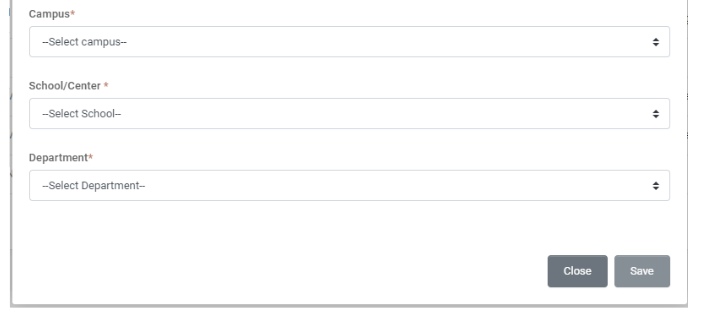
Created Job will have to be approved by the dean for appearing at the candidate side.
Edit or Delete a Job request
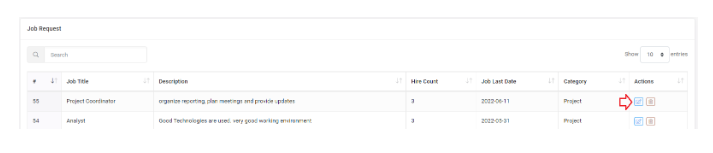
Admin can click on the edit icon to edit the respective job request in the table. Another way to edit a job is clicking the job name to open the job details page and click the edit button there.
Admin can delete a job request by clicking the delete icon near to it.
Search a job
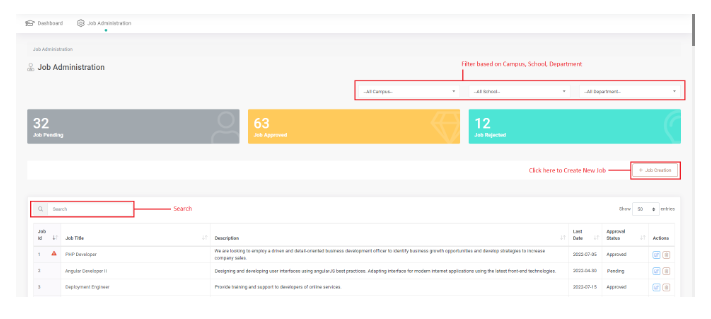
Apart from this, admin will be able to search a job, filter the list based on campus, school and department from the Job Administration page.
From Job administration page admin will be able to view the count of Jobs pending for approval, jobs approved, jobs got rejected and filter the list by clicking on the count displayed.
The alert symbol (red exclamation mark) near the Job Id indicates that the job got expired.
Dashboard
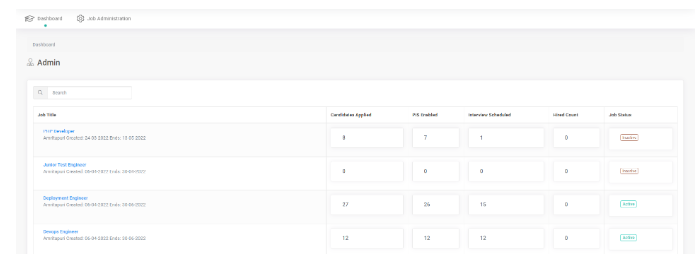
From the dashboard user will get a glimpse on the quantitative analysis of each job.
The Job table in the dashboard consists of
Job Title - This is the title of the post.
Candidate Applied - Clicking on this count displays the list of candidates applied for this job.
PIS Enabled - Clicking on this count displays the list of candidates who has PIS enabled for this job.
Interview Scheduled - Clicking on this count displays the list of candidates who has Interview Scheduled for this job.
Hired count - Clicking on this count displays the list of candidates who are hired for this job.
Job Status - Shows whether the job is currently active or inactive. Active means it is available for the candidates to apply. Inactive means this job is not currently available for the candidates to apply.
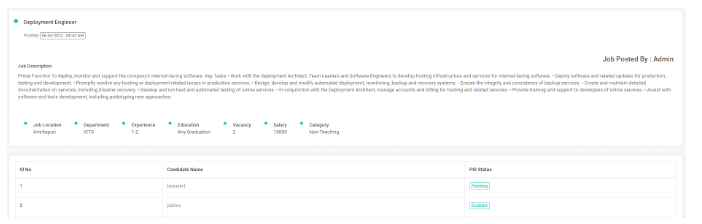
To View descriptive details of a Job
Click on the Job title to view the descriptive details of the job and the list of candidates applied with status of PIS.
To View candidate list with the process status of candidate's application for a particular job
Go to Dashboard
Click on any one of the count of a job from the dashboard to view the list of candidates with process status based on the category you clicked to apply.
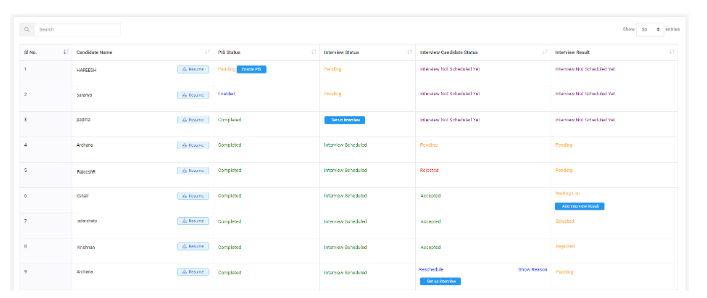
The above image shows the stages of different candidate's job application. Let's see what stage each candidate is
Candidate has applied for the job, now admin need to enable PIS form for that candidate to fill the details.
For this candidate, Admin has enabled the PIS form to fill details.
Here candidate has completed filling the PIS form details and the admin needs to Schedule interview.
Here Admin had scheduled the interview and waiting for the confirmation from candidate.
This candidate has rejected the interview notification.
This candidate has accepted the interview notification. The candidate has attended the interview, but the admin has put the interview result as waiting list.
Here for this candidate admin has published the interview result as Selected.
Here this candidate got rejected in the interview result.
This candidate has requested to re-schedule the interview. Admin can re-schedule the interview depending on the availability of slot if required.
To View profile of a candidate who has applied for a job
Go to dashboard
Click on Candidates Applied count against a job to open the list of candidates who has applied for that job
Click on the name of the candidate
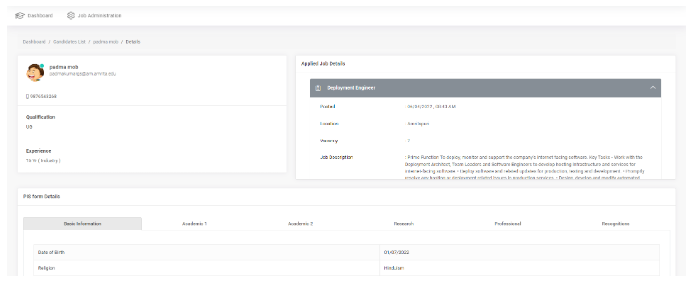
A small window with basic detail of candidate appears. Click More button at the bottom to view a detailed view of the candidates profile.
This page consists of the contact details of the candidate, list of jobs the candidate has applied for, and PIS form details.
Enable PIS form for a candidate
Once a candidate applies for a job, admin needs to enable PIS form to fill the required details. To enable PIS form
Go to Dashboard
Click on Candidates Applied count against the job for which PIS form needs to be enabled.
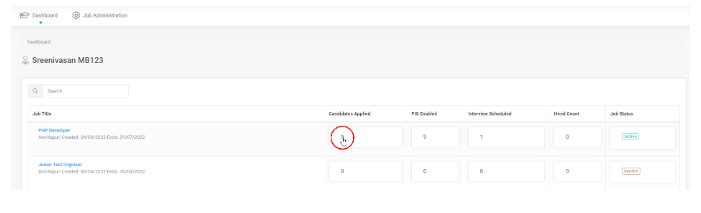
Click on Enable PIS button against the candidate name to whom PIS form need to be enabled.

PIS form consists of 6 sections. Each section consists of the following details which candidate need to fill.
Sections | Details Covered |
|---|---|
Basic Information | Date of Birth |
Academic 1 | Have you cleared Under Graduation ? If Yes Provide details. |
Academic 2 | Have you cleared UGC NET ? |
Research | No. of Research Project Guided |
Professional | Provide previous Experience information if any |
Recognitions | Whether received any Award / Recognition ? |
Based on the plausible data in PIS form filled by candidate, admin will short list and schedule interview for the candidate.
Schedule Interview for a candidate
To Schedule interview for a candidate
Go to Dashboard
Click on PIS Enabled count against the job for which interview needs to be scheduled.

Click on Setup Interview button against the candidate name who has completed filling PIS form.

A pop up window opens where select interview date, interview time and mention venue of interview. Click Save.
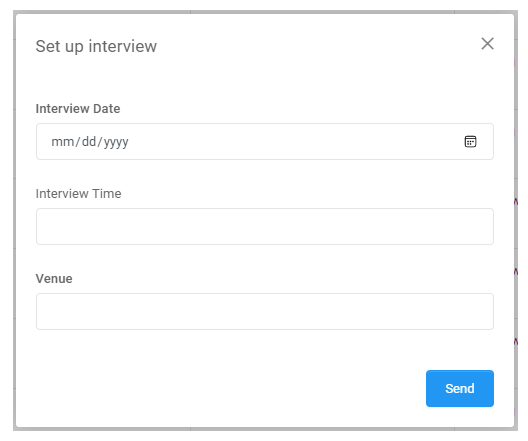
An Email notification will be send to the candidate regarding the interview. Candidate can Accept, Reject or request to Re-Schedule the interview.
Publish Interview Result
To add interview result
Go to Dashboard
Click on PIS Enabled count against the job for which interview result needs to be added.
Click Add Interview Result button against the candidate name to whom the result needs to be added.

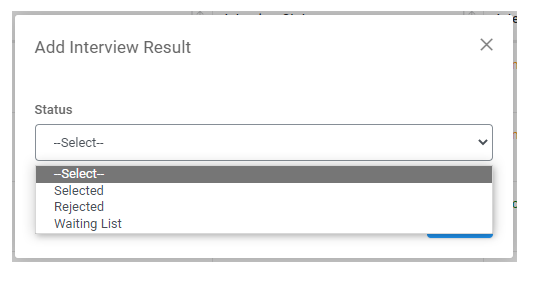
A pop up window opens where select the status of interview result. Click Save.
Interview result can be procrastinated if required by setting the status as waiting list.