Admin - V02
Introduction:
Amrita Job portal is a new career guidance portal which helps job seekers to find their career at Amrita. The Job seekers can avail job by registering themselves in to this portal, search and apply for different jobs which matches their profile. This document illustrates admin role in Amrita Career Portal.
Getting Started:
Open an internet browser (Recommended to use Google Chrome)
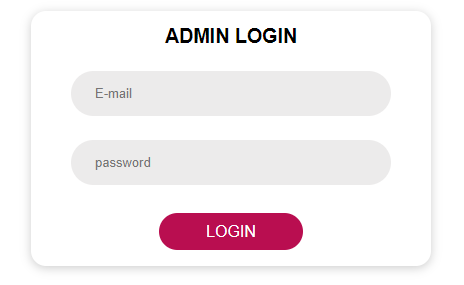
Type https://careers.amrita.edu/admin-login and click enter
Login with your amrita email id and password.
Click Login.
New Job Creation:
Once you login, you will be landed to the Dashboard page.
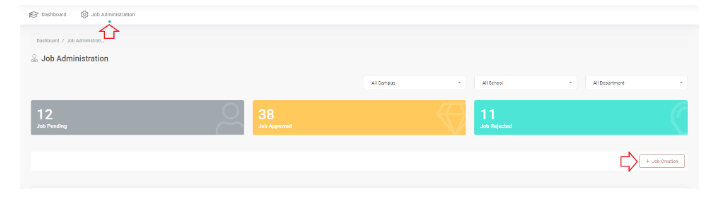
Click Job Administration in the top menu.
Click on the Job Creation button at the right side of the page.
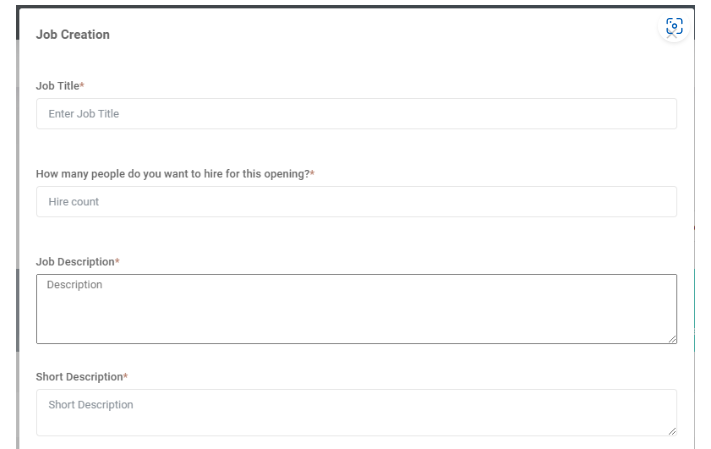
Job Creation window will be opened.
Fill the following details
Enter a job title
Add the number of people you want to hire for this opening
Add job description
A Short description about the job
Where the jobs to be posted other than Amrita job portal ?
Last date till the job can be applied
Select category of the job
Experience required for the job
Approximate Salary package range
Minimum qualification required for the job
Select the Campus, School and Department from the drop down under which the Job will be created.
Click Save button
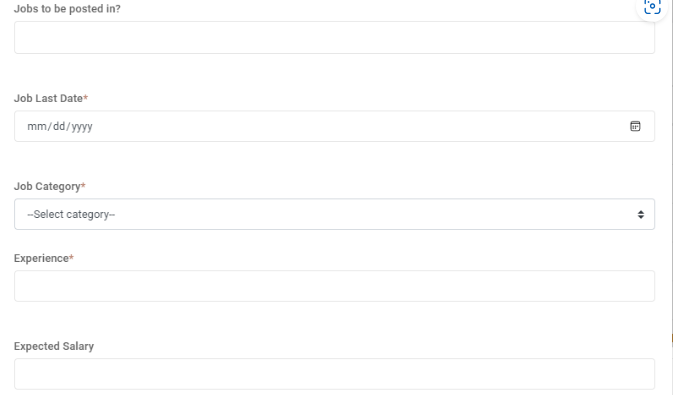
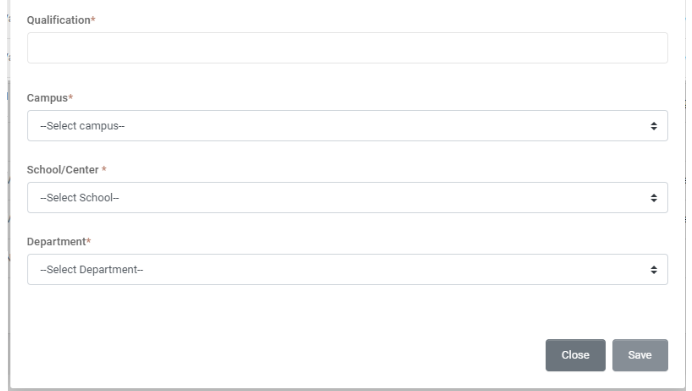
Created Job will have to be approved by the dean for appearing in the candidate side.
Edit or Delete a Job request
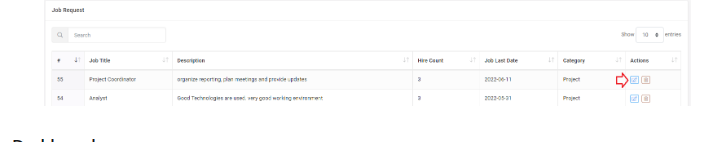
Admin can click on the edit icon to edit the respective job request in the table.
Admin can delete a job request by clicking the delete icon near to it.
Dashboard
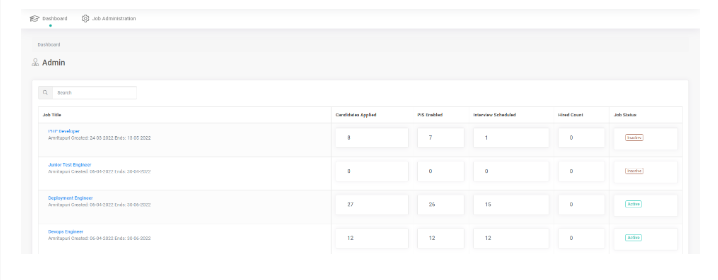
From the dashboard user will get a glimpse on the quantitative analysis of each job.
The Job table in the dashboard consists of
Job Title - This is the title of the post.
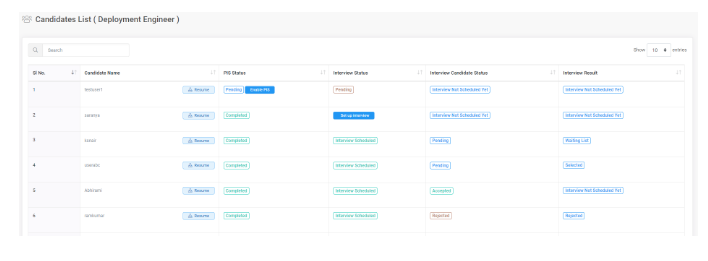
Candidate Applied - Clicking on this count displays the list of candidates applied for this job.
PIS Enabled - Clicking on this count displays the list of candidates who has PIS enabled for this job.
Interview Scheduled - Clicking on this count displays the list of candidates who has Interview Scheduled for this job.
Hired count - Clicking on this count displays the list of candidates who are hired for this job.
Job Status - Shows whether the job is currently active or inactive. Active means it is available for the candidates to apply. Inactive means this job is currently on available for the candidates to apply.
To view the descriptive details of a Job
Click on the Job title to view the descriptive details of the job and the list of candidates applied with status of PIS.
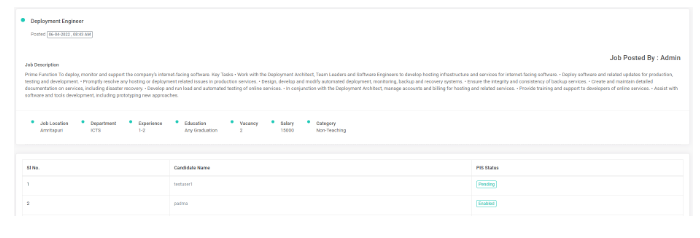
To view the candidate list with the process status of a particular job
Click on any one of the count of a job from the dashboard to view the list of candidates with process status based on the category you clicked to apply.