How to hire directly without posting job in public career portal
Introduction:
Amrita Career Portal is an indigenous career guidance portal eclectically designed to help job seekers to find their careers at Amrita. Job seekers can avail of jobs by registering themselves in this portal searching and applying for different jobs which match their profile.
Administrative user create jobs and post them on the amrita career portal and other public career portals with approval from higher officials. Jobs can be posted public (Available publicly visible in the career portals for all candidate users) or private (Are not posted in any outside career portals, but available only inside Amrita career portal and visible only for assigned candidates). Let us refer the visibility restricted jobs as "NoWhere Jobs". This document illustrates how to hire directly without posting job in public career portal.
Getting Started:
To access Amrita Career Portal
Open an internet browser (Recommended to use Google Chrome)
Type https://my.amrita.edu/ and click enter
Login with your amrita email id and password.
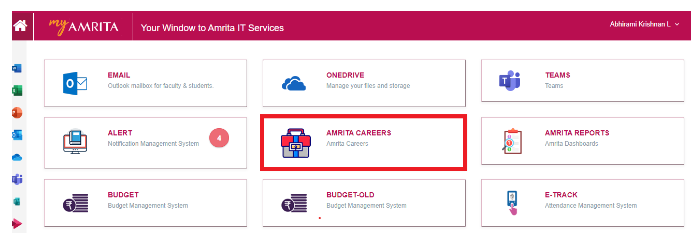
Click AMRITA CAREERS
Create a Job:
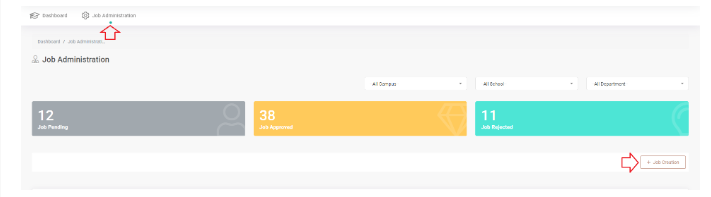
Click Job Administration in the top menu.
Click on the Job Creation button at the right side of the page.
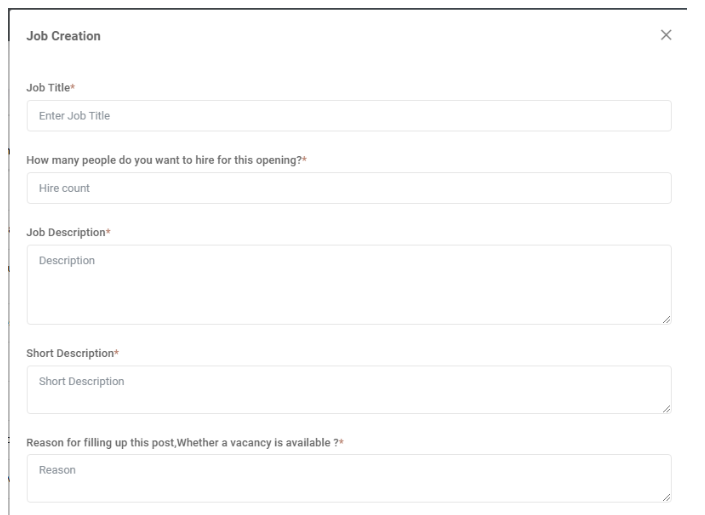
Job Creation window will be opened.
Fill in the following details
Enter a job title
Add the number of people you want to hire for this opening
Add job description
A Short description of the job
Whether this job role is existing ? If Yes mention Reason for filling up this post ?
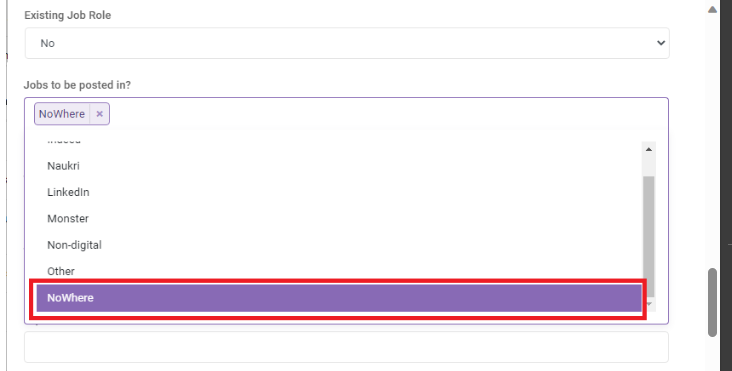
Where are the jobs to be posted other than the Amrita career portal? - Here you need to choose "NoWhere" from the drop-down. Any combinations with "NoWhere" wont work. Means if you add any other portal name along with NoWhere, Nowhere will override them all.
The last date till the job can be applied
Select the category of the job
Experience required for the job
Approximate Salary package range
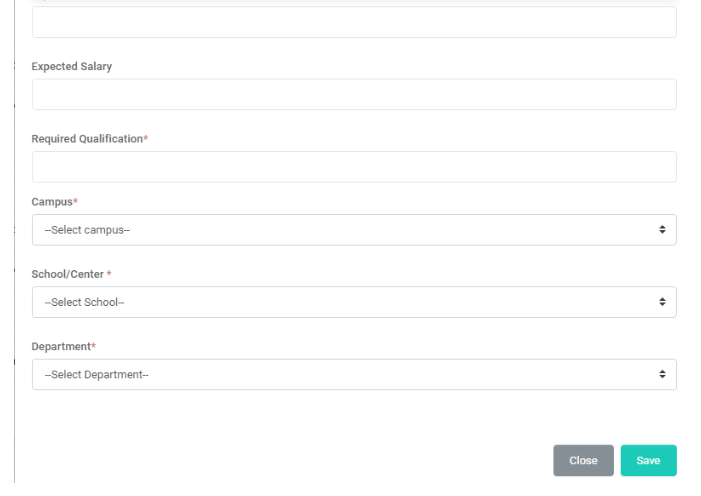
Minimum qualification required for the job
Select the Campus, School, and Department from the drop-down under which the Job will be created.
Click the Save button.
Note: No email notification will be send to AOC Department regarding the NoWhere Job upon approval by Dean.
Assign Candidate Email ID:
NoWhere Job will only be visible to those whose emails are assigned by the Administrative user. Let us see how to add candidate email id.
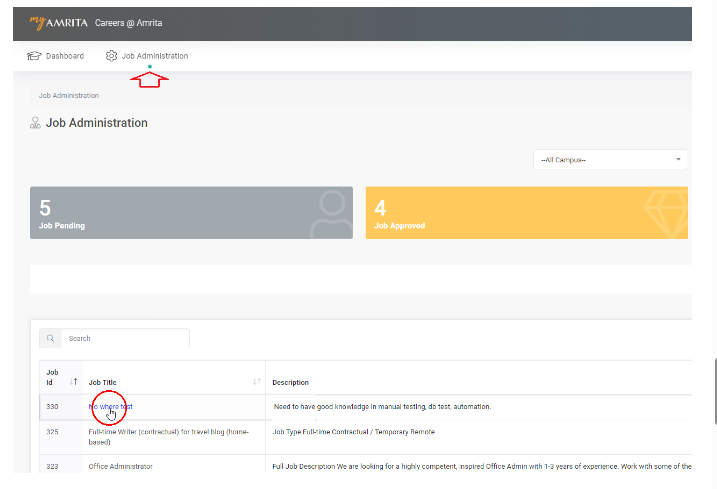
Go to Job Administration
NoWhere Job will be displayed in blue color among the list.
Click on the NoWhere Job name from the job list to open the details page.
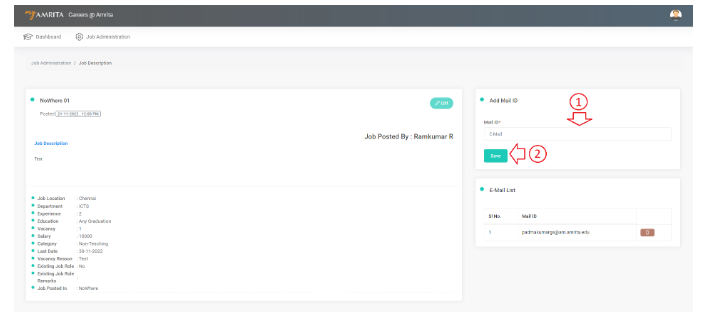
In the Job detailed page, type the email id inside the input box right side to the page.
Click Save Button.
Added email id will be displayed under Email List at the right side of the page.
Now the job will be visible only for the candidates with the respective added email ids.
Remove Email id from List:
Go to Job Administration
Click on the NoWhere Job name from the job list to open the details page.
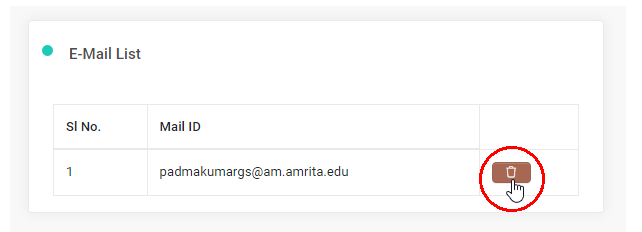
Right side of the page you will be able to see the list of email ids assigned.
To remove the assigned email id, click on the trash icon near to email id.
The email id will be removed from assigned list and the job will no longer visible for the user with the removed email id to apply.
Make sure you remove the email id before the corresponding candidate applies for the job. If the candidate has already applied this job, then the job will be available in the job applied list of the candidate to proceed further.