Finance Portal User(Admin) manual 2022
Admin Guidelines
Introduction``
The Finance Portal is an in-house website (or app) that provides a variety of financial data and information relating to the university, all in one place. The portal is a domestic platform under Amrita University, which means that the users, who don’t have an Amrita email id will not be able to see or edit any information on the portal.
Procedure
1. log in to the Finance portal through “My Amrita”
2. The portal enables the Admin to view:
Application Registration
Term
Transaction history
Campus List
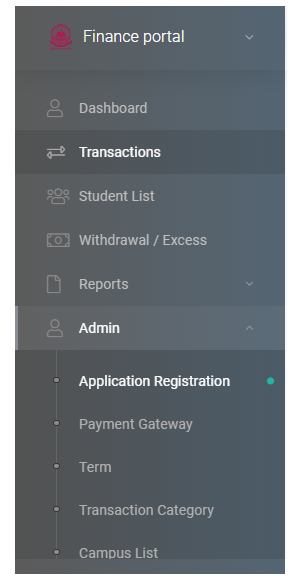
3. Application registration encompasses the financial details of all the applications that are registered under Amrita University.
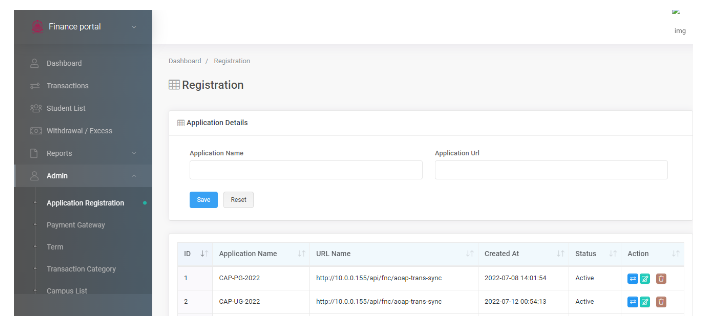
a) The Admin can add new applications by providing the “Application Name”, and their “Application URL”
b) The Admin can view:
the status of the individual application as “Active” or “Inactive”
the time and date at which the application was registered in “ Created At”
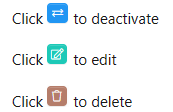
C) The Admin can also initiate an application deactivation, edit or delete an application at “Action”
4. “Payment Gateway” demands Gateway details such as “Gateway name” and “Campus”.
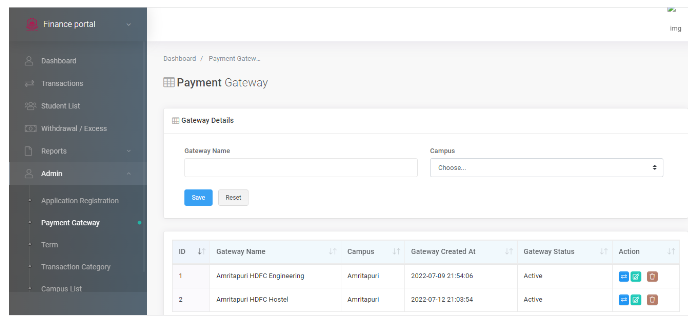
a) The Admin can add a new “Gateway by providing the “Gateway name” and “Campus”
b) The Admin can view:
the status of individual Gateway as “Active” or “Inactive”
the time and date at which the Gateway was registered in “ Created At”
C) The Admin can also initiate Gateway deactivation, edit or delete an application at “Action”.
5. “ Term” enables the Admin to create personalized descriptors for yearly financial statements.
e.g. The tuition fee for the year 2022 could be termed as “2022 TUITION FEE”.
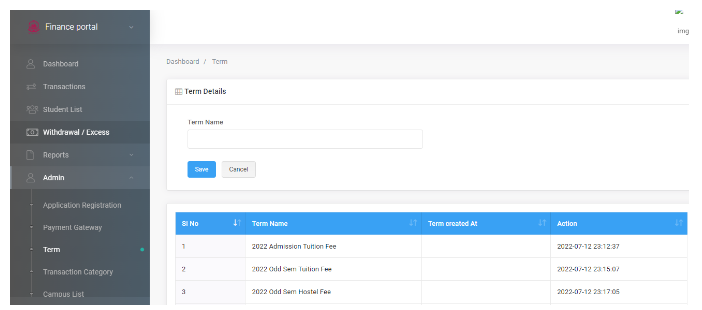
a) The Admin can view: -- the time and date at which the descriptor was added, in “ Created At”
b) ) The Admin can also initiate the term deactivation, edit or delete an application at ”Action“
6.“Transaction Category” holds the record of various “transaction titles” under which transactions are made in AOAP/ ADMIN PORTAL.
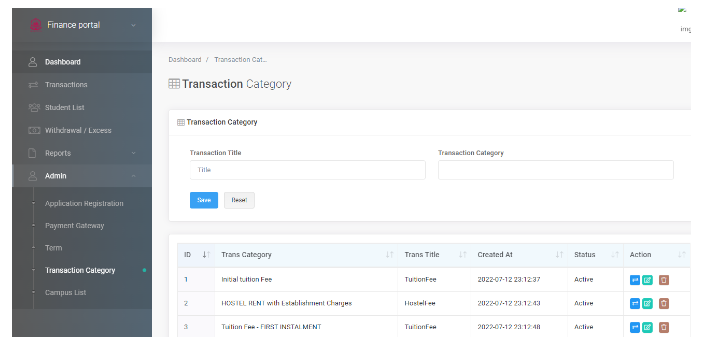
a) The Admin can view
Various labels under which the transactions are made in “ Transaction title”
“ Transaction category” which classifies “transaction titles” using keywords.
The time and date at which the “ transaction title” was added, in “ Created At”
b) The Admin can also initiate the “ transaction category“ deactivation, edit or delete an application at ”Action“
7. “Campus list” comprises the list of various campuses under Amrita University.
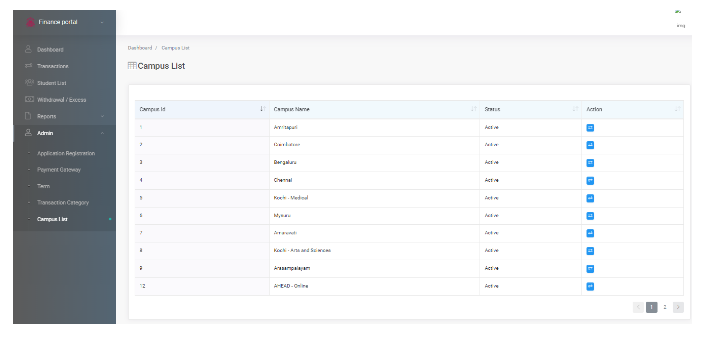
a) The Admin can view the status of financial transactions in all the campuses
b) The admin can initiate the deactivation of all the transactions under the campus assigned.