Include or Exclude holidays within a category
Introduction:
This document aims to illustrate the importance of the new attendance system. Amrita E-Track is an indigenous application designed to help the organization run a digital attendance system. This document guides how to Include or Exclude holiday of staff within a category.
Getting Started:
To access Amrita Attendance Management System
- Open an internet browser (Recommended to use Google Chrome)
- Type https://my.amrita.edu/ and click enter
- Login with your amrita email id and password.
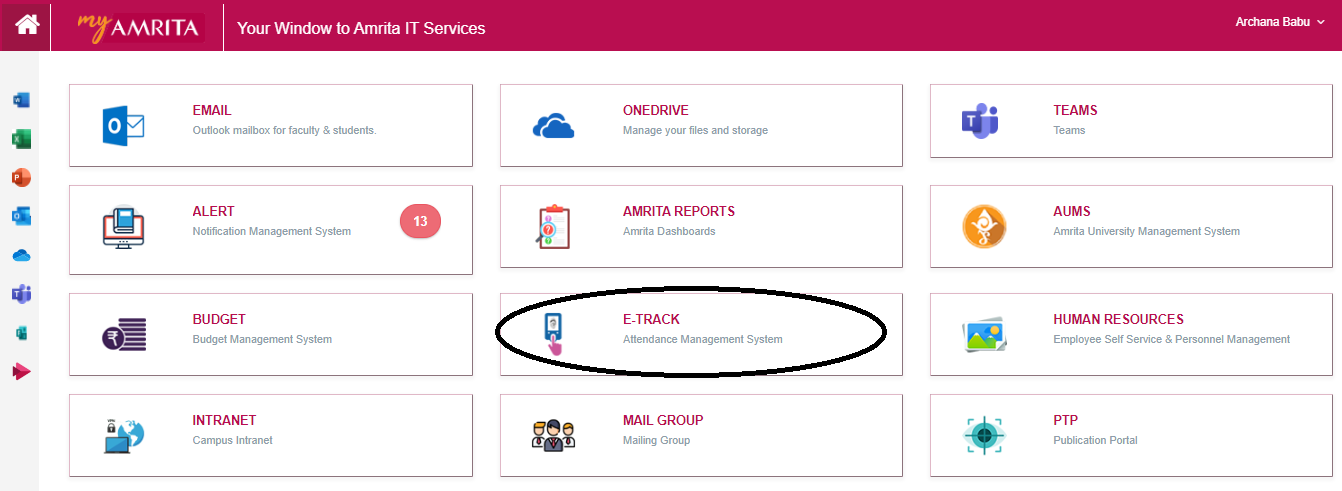
- Click AMRITA E-TRACK
To Add holiday to a school
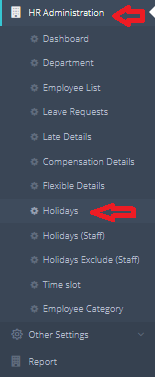
- Go to HR Administration
- Go to the Holiday tab
- Select the School
- Click on the "+" button
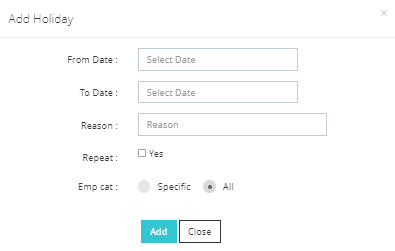
- Enter the from, to, reason of holiday, Employee category(if you want to specify) and click on the ADD button.

To include a holiday for a particular staff
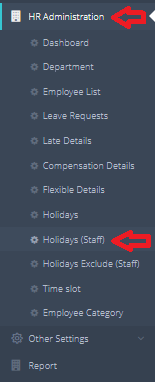
- Go to HR Administration
- Go to Holiday(Staff) tab
- Select the School where the staff belongs to
- Click on the "+" button
- Enter the From, to date, Remarks(Holiday Remarks), Employee id. If there are multiple employees, please enter the employee id separated by comma
- Click on the Add button

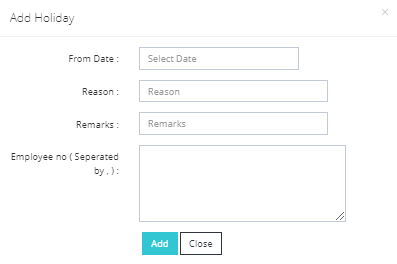
- After adding, in the page it will show the message, whether, the holiday got added to that particular staff
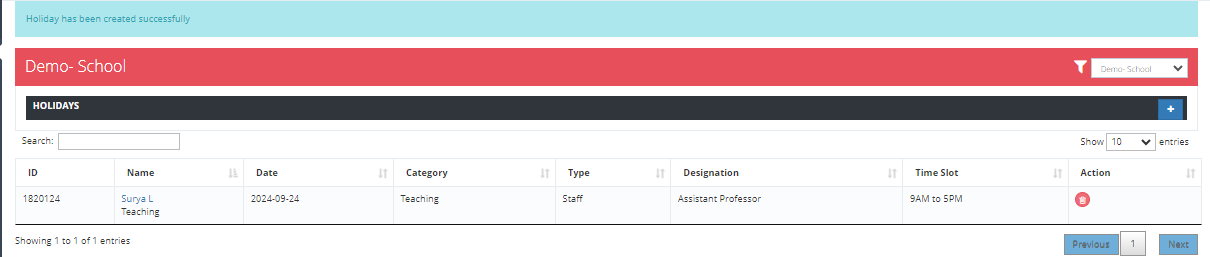 Once this is done you can check in that staff profile in the attendance page(Calender)
To exclude a holiday for a particular staff
- Go to HR Administration
- Go to Holidays (Exclude Staffs) tab
- Select the School where the staff belongs to
- Click on the "+" button
- Enter the From, to date, Remarks(Holiday Remarks), Employee id. If there are multiple employees, please enter the employee id separated by comma
- Click on the Add button Once this is done you can check in that staff profile in the attendance page(Calender)
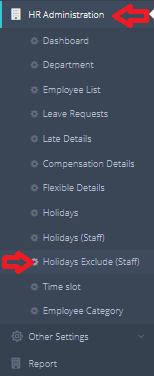
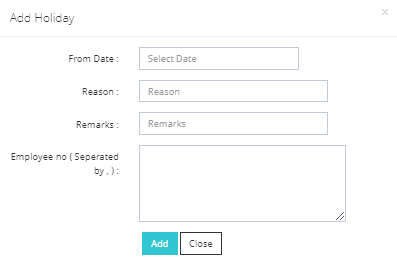
- After adding, in the page it will show the message, whether, the holiday got added to that particular staff
Once this is done you can check this in that staff profile, that the holiday has been removed for him/her.
To delete the included/excluded holidays
- Go to the HR administration
- Go to Holidays(Staff) or Holidays(exclude Staffs)
- Click on the delete button
