Import or copy the configuration of one school to another
Introduction:
The purpose of this document is to illustrate the importance of new attendance system. Amrita E-Track is an indigenous application designed to help the organization to run a digital attendance system. To setup E-Track for a school or centre, we need to do initially add time slots and employee categories. Here we will look how to import or copy the configuration of one school to another in E-Track. This will simplify the initial configuration steps.
Getting Started:
To access Amrita Attendance Management System
- Open an internet browser (Recommended to use Google Chrome)
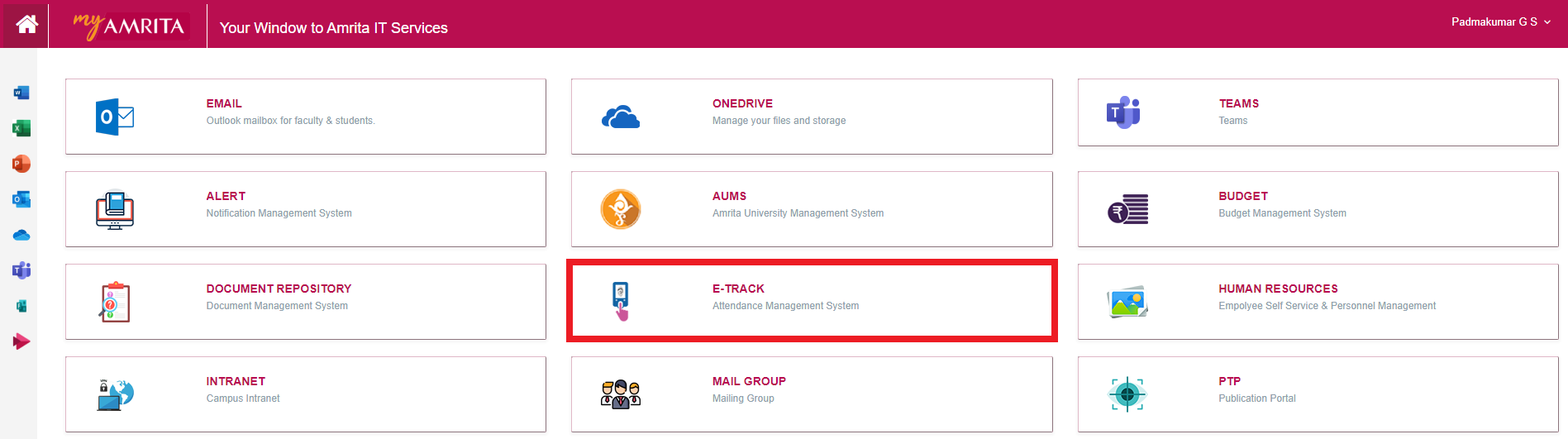
- Type https://my.amrita.edu/ and click enter
- Login with your amrita email id and password.
- Click AMRITA E-TRACK
Import Configuration:
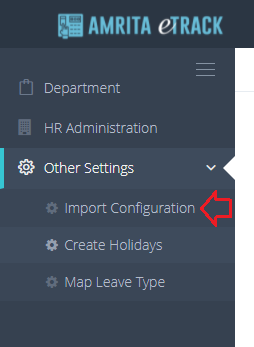
- Go to Other Settings in the left side menu
- Click Import Configuration
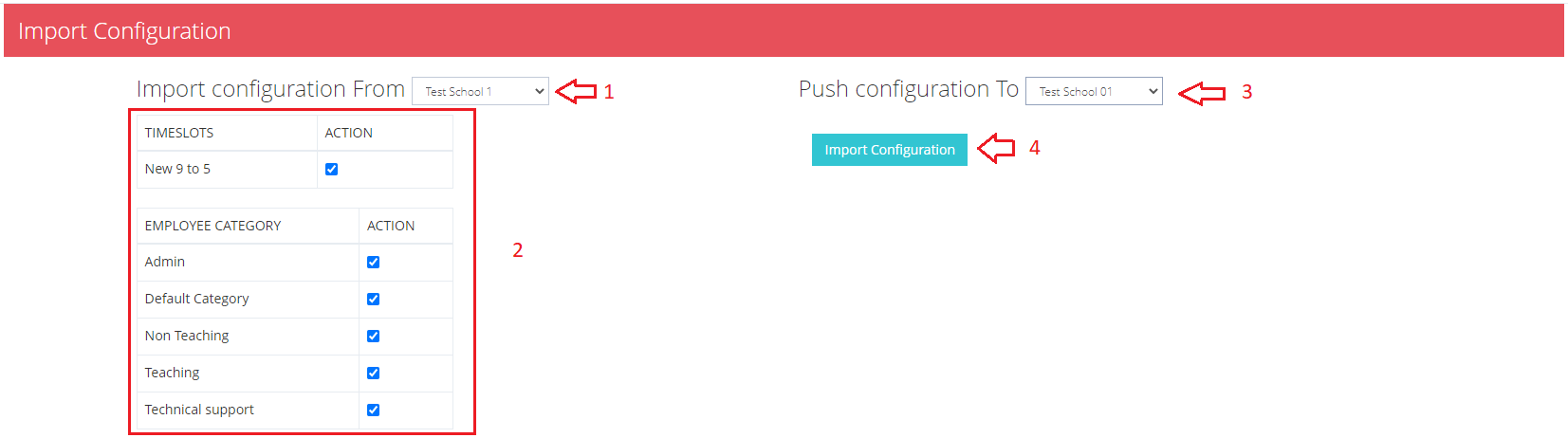
- Import Configuration page opens where you need to Select the From location and To location from the drop-down.
- Select the School from which the configuration needs to be imported. The configuration under that school will be displayed. You can mark the relevant ones to import.
- Select the School to which the configuration needs to be pushed from drop-down.
- Click Import configuration button to import the selected configuration.